
"The channel connection was lost"
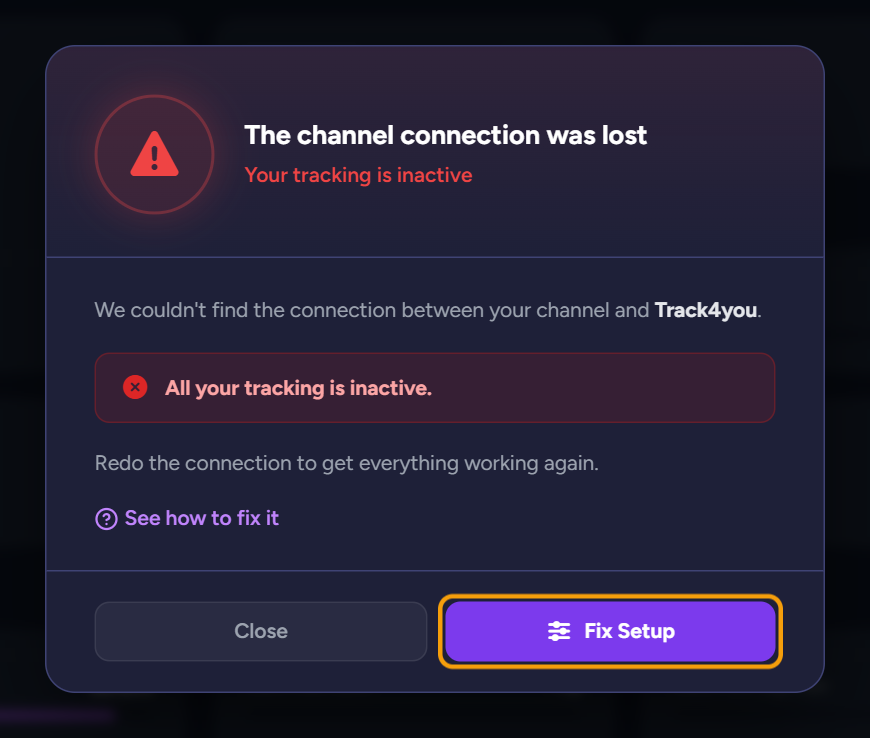
Symptom: when you open the app, the "The channel connection was lost" / "Your tracking is inactive" notice shows up.
Track4you lost contact with your tracking bot or with the channel. Until this is fixed, channel joins aren't tracked. The fix takes a few minutes.
How to fix it
In the notice, click "Fix Setup". The Channel screen opens.
Look at the "Integration Status" card and find the line with the problem:
- "Connection with the Channel" showing "Not found! Add the bot to the Channel.": the bot left the channel or lost its administrator role.
- "Connection with Track4you" showing "Not found! Redo the setup.": the bot's token changed or the bot is being used in another tool.
If the problem is the channel: in Telegram, add the tracking bot back as an administrator of the channel, with all permissions.
If the problem is Track4you: remove the bot from any other tool (it must be exclusive to Track4you). Then, in @BotFather, generate a new token for the bot.
On the Channel screen, click "Reconnect" (yellow button).

In "Reconnect Bot", paste the bot's token into "New Token" (the new one, if you generated one in step 4) and click "Reconnect".
How to check it worked
- The channel shows "Active" again.
- The "Integration Status" lines show "Connected!".
- The notice stops showing up as you move around the app.
Common problems
- "Invalid token.": the token was copied only partly or belongs to another bot. Copy it again in @BotFather.
- Reconnecting warns that the bot isn't in the channel: add the bot to the channel as an administrator (step 3) and try again.
- The connection drops again after a while: the bot is still connected to another tool. Create a bot just for Track4you. See Create the tracking bot in BotFather.
Still seeing the notice? Contact support.