
Create an integration
Each integration links one event type from your platform (sign-up, FTD, deposit or custom) to a pixel. If you want to send sign-ups and FTDs, create two integrations.
Before you start
- Pro or Enterprise plan.
- A pixel added, with a working token. See Add the pixel to Track4you.
- Meta's Events Manager open in another tab, to get the test code.
- Know which URL parameter your platform reads the click ID from (ask its support). See the explanation in the Technical guide.
Step by step
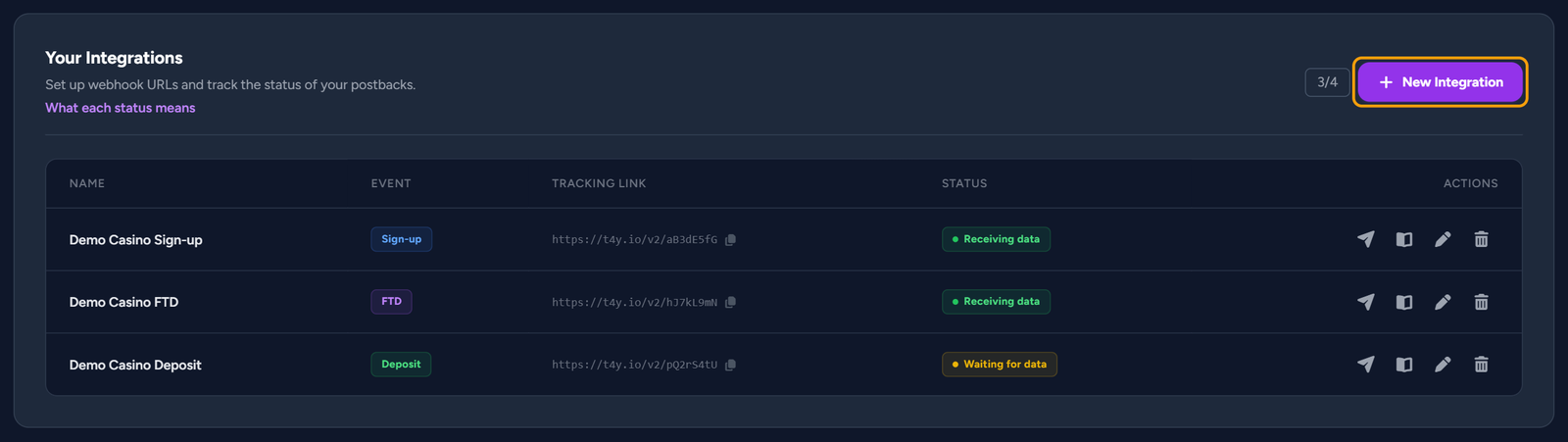
In the menu, open Integrations and click "New Integration".
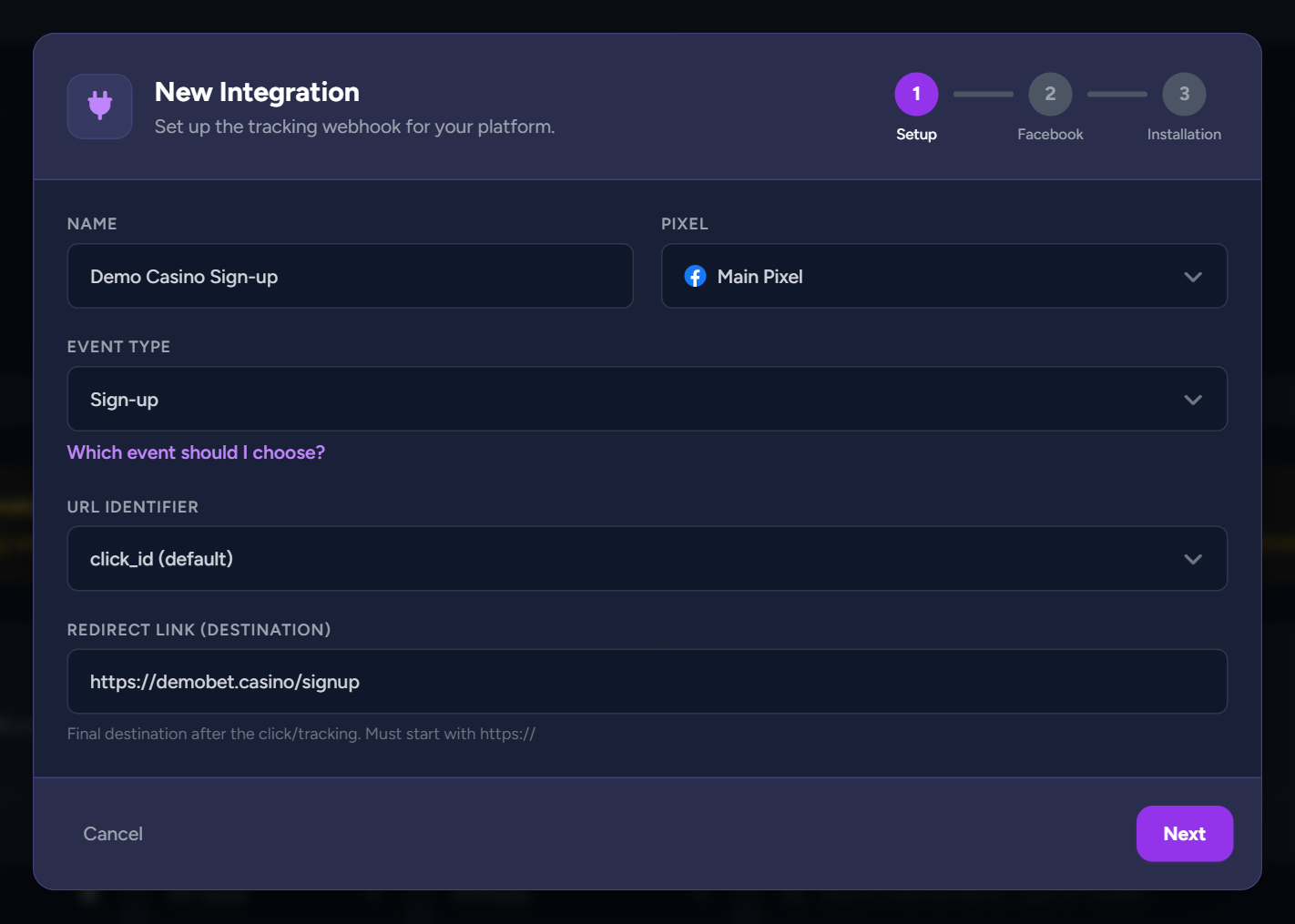
On the "Setup" step, fill in:
- "Name": a name just for you, to identify the integration (e.g. "Demo Casino Sign-up").
- "Pixel": the pixel that will receive the conversions.
- "Event Type": "Sign-up", "FTD", "Deposit" or "Custom". See Event types.
- "URL Identifier": the name of the parameter your platform reads the click ID from. If you don't know it, leave "click_id (default)" and confirm with the platform.
- "Redirect Link (Destination)": the page on your platform where the lead goes (e.g. the sign-up page with your affiliate link). It must start with
https://.
Click "Next".
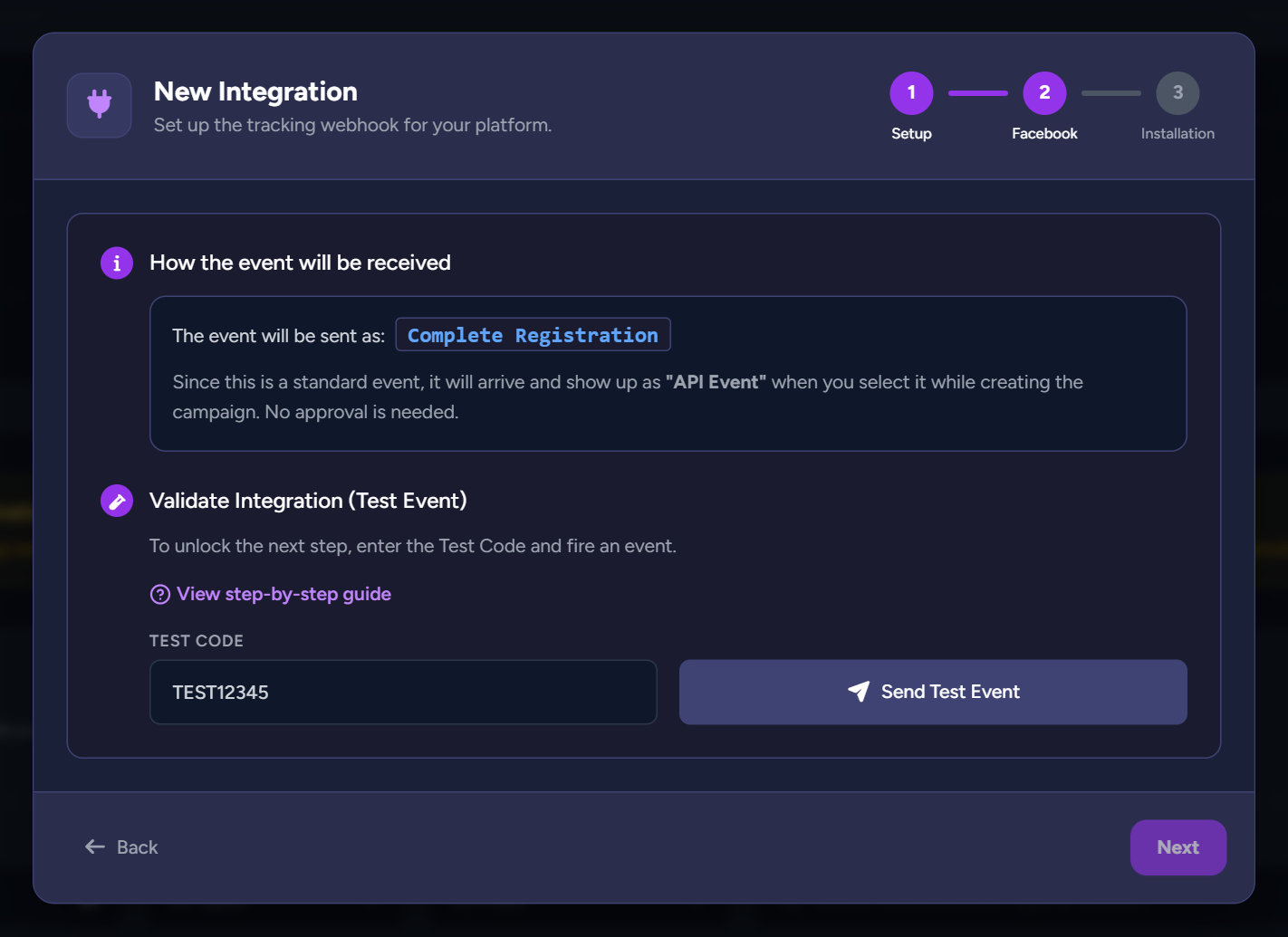
On the "Facebook" step, check how the event will reach the pixel. Copy the test code from Meta's Events Manager ("Test events" tab), paste it into "Test Code" and click "Send Test Event". When the button shows "Sent!", "Next" unlocks.
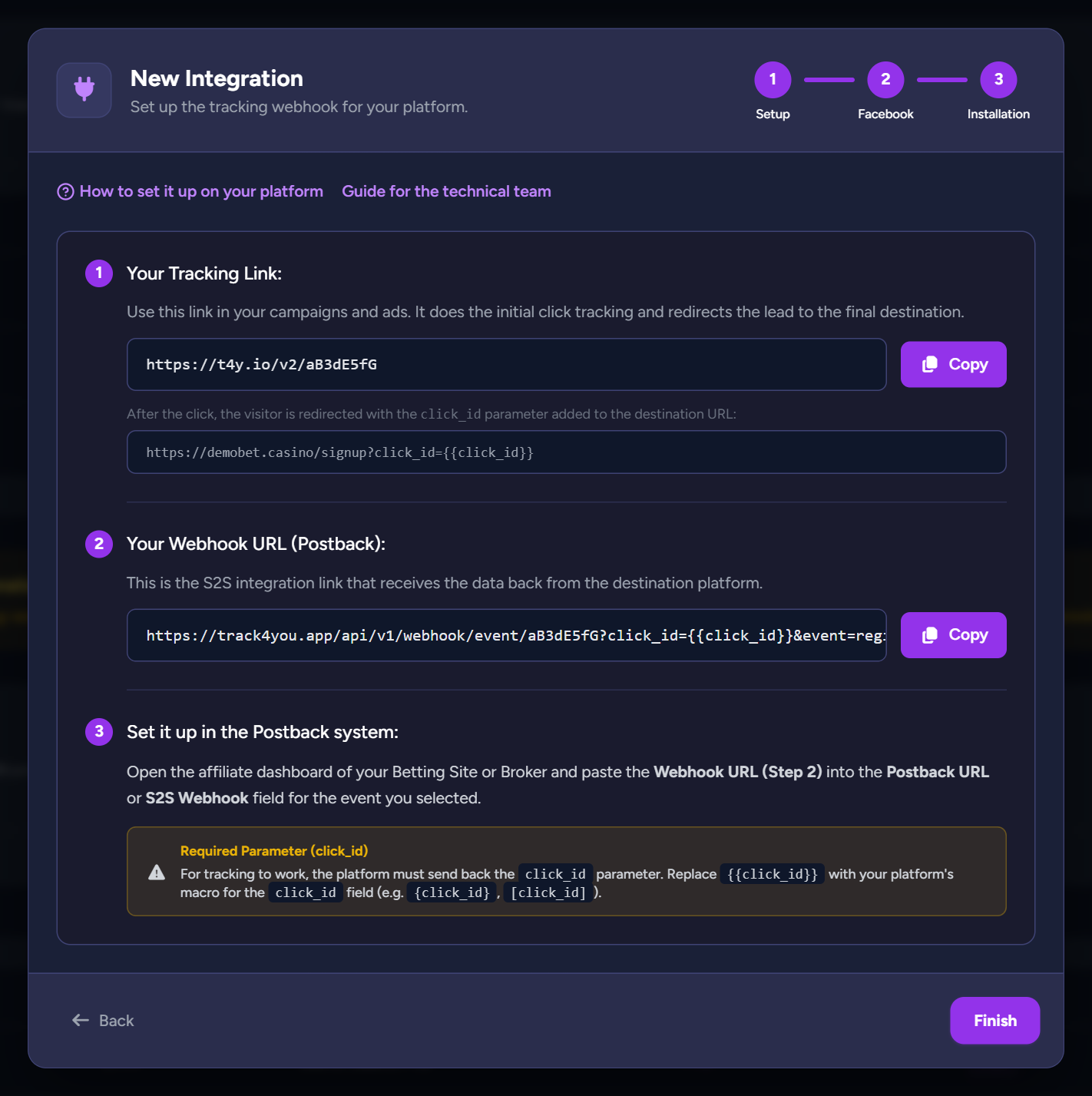
On the "Installation" step, copy both items:
- "Your Tracking Link": goes in your ads, bio, groups and content.
- "Your Webhook URL (Postback)": goes in your platform. See Set up the postback on your platform.
Click "Finish".
FTD and Custom need approval in Meta
After the Test Event, the event shows up on Meta's test screen with a warning (⚠️). Click it to confirm the event: only then is it available to use in campaigns. Sign-up and Deposit are standard events and don't need this.
How to check it worked
- The integration shows up in "Your Integrations" with the "Waiting for data" status.
- After the first real conversion from the platform, the status changes to "Receiving data" and the event shows up in the "Event History".
Common problems
- "Integration limit reached.": your plan has reached its maximum number of integrations. Delete one you don't use or change plans on the Plans page.
- "An integration named ... already exists.": use another name.
- "An integration with this custom event already exists.": each custom event can only be used in one integration.
- "Next" doesn't unlock on the "Facebook" step: the test code needs at least 4 characters and the send needs to show "Sent!". See Integration Test Event.