
Change channels or disconnect
Each Track4you channel is linked to 1 Telegram channel at a time, on every plan. To put another Telegram channel in its place, you disconnect the current one and connect the new one. There's no option to edit the channel: changing always means disconnecting and connecting again.
Want to track another channel without removing this one? No need to disconnect: see Track more than one channel.
Before you start
- The channel can only be disconnected if no funnel is using it. First, delete the funnels linked to the channel under Funnels. See Edit, view the tutorial or delete a funnel.
- Are you sure you need to change it? If the problem is a dropped connection, use Reconnect the bot with a new token: it fixes things without touching your funnels.
Deleting a funnel can't be undone
When you delete a funnel, it's removed from your funnel list for good. Write down each funnel's pages and settings first, so you can recreate them on the new channel.
Step by step
Under Funnels, delete the funnels linked to the channel that's leaving.
Open Channel in the menu and click "Disconnect" on the channel card.

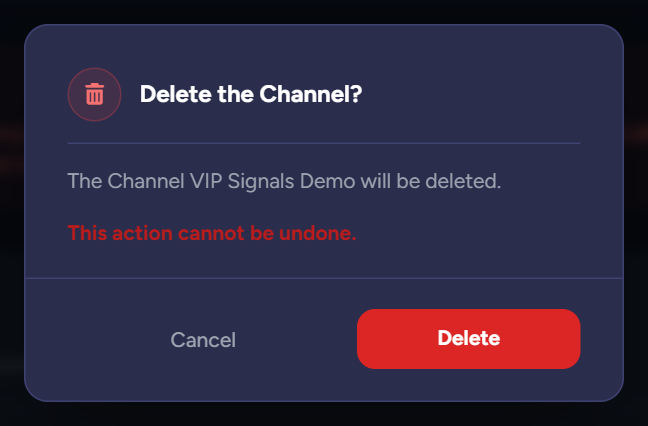
Confirm in "Delete the Channel?" by clicking "Delete". You'll see the message "Channel removed".
To connect the new channel, click "New Channel" and follow Connect your channel to Track4you. Then recreate your funnels under Funnels and update the script and the join link on your pages.
Keeping the old bot?
After you disconnect, the bot stays an administrator of the old Telegram channel. If you won't use it anymore, remove the bot there in Telegram itself. For the new channel, create a new bot in @BotFather and follow the connection steps from the start.
How to check it worked
- After disconnecting, the Channel screen shows "Channel disconnected" and the "New Channel" button.
- After connecting the new channel, the "Configured Channel" card shows the new channel's name with the "Active" badge.
Common problems
- "This channel cannot be deleted because it is linked to a funnel.": a funnel is still using the channel. Delete those funnels under Funnels and try again.
- "Maximum number of channels reached" when connecting the new one: the old channel is still connected. Disconnect it first (steps 2 and 3) or add the new one through Track more than one channel.
Need to track more than one channel?
Add a new channel to the same login, with its own plan. See Track more than one channel.