
Where to find the pixel ID and the Conversions API token
To link your pixel to Track4you you need two things from Meta: the pixel ID and the Conversions API access token. Both are in Events Manager and take just a few minutes to get.
Before you start
- Access to Meta Events Manager, with admin permission on the pixel (in the business portfolio it belongs to).
- If you don't have a pixel yet, create one in Events Manager itself (the button to connect a new data source, Web option).
Pixel or "dataset"?
In Events Manager, Meta calls the pixel a dataset. It's the same thing: the dataset ID is the pixel ID.
Step by step
Open Meta Events Manager. In the "Datasets" list, find your pixel. The number next to "ID", below the name, is the pixel ID. Copy it and keep it.
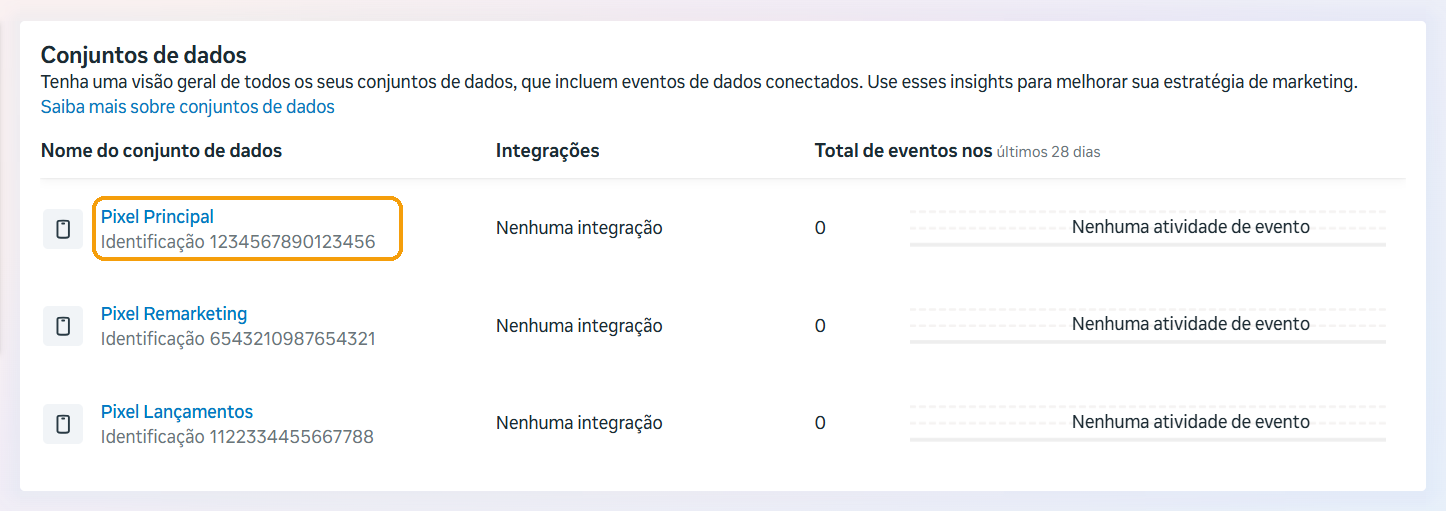
Click the pixel name and open the "Settings" tab. Under "Details", the same number shows up as "Dataset ID". Use this path if you want to double-check that you copied the right pixel ID.

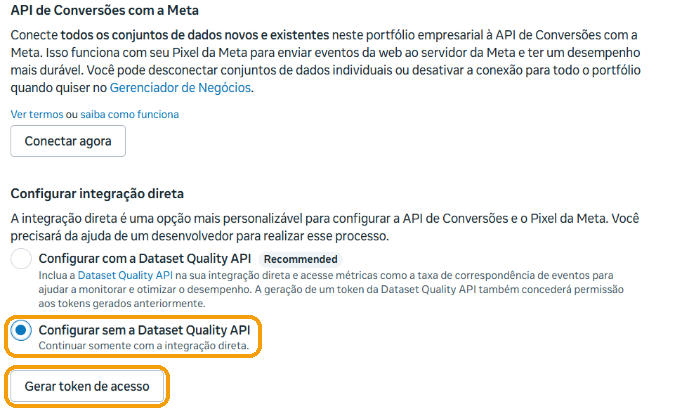
Still in "Settings", scroll down to the Conversions API section. Under "Set up direct integration", check "Set up without Dataset Quality API" and click "Generate access token".
Meta shows the generated token: a long string that starts with
EAA. Click to copy it and paste it straight into the "Access Token" field in Track4you. See Add the pixel to Track4you.
The token is a password
Whoever has the token can send events to your pixel. Don't send it by WhatsApp, email or screenshot, and don't paste it in groups. Paste it only into the "Access Token" field in Track4you.
Generating a new token kills the old one
If this pixel already has a token in use (in Track4you or another tool), generating a new one invalidates the current one right away. When you need to change it, follow Change the pixel token without losing events.
How to check it worked
- You have the pixel ID (numbers only, e.g.
1234567890123456) and the token (a long string starting withEAA). - When you add the pixel in Track4you and click "Next", the pixel is validated with Meta and the form moves on to the "Test Event" step.
Common problems
- The option to generate a token doesn't show up: your user doesn't have admin permission on this pixel. Ask whoever manages the business portfolio for access.
- I copied the token but lost it: generate another one and paste it into Track4you right away. Remember that the new token replaces the previous one.
- Track4you says "Invalid token" or "Invalid Pixel ID": check that the token and the ID belong to the same pixel. See Add the pixel to Track4you.
Still have questions? Talk to support on WhatsApp.