
Recurring broadcasts in the channel
Recurring Broadcasts post in your channel on the days and at the times you set, every week, without you having to be online. Great for the daily "good morning", the live reminder or the signals schedule notice. Each broadcast can have several variations, and on each send Track4you picks one at random, so the channel doesn't get repetitive.
Before you start
- The message bot set up and an administrator of the channel with permission to post messages: it's the one that posts. See Set up the message bot.
Step by step
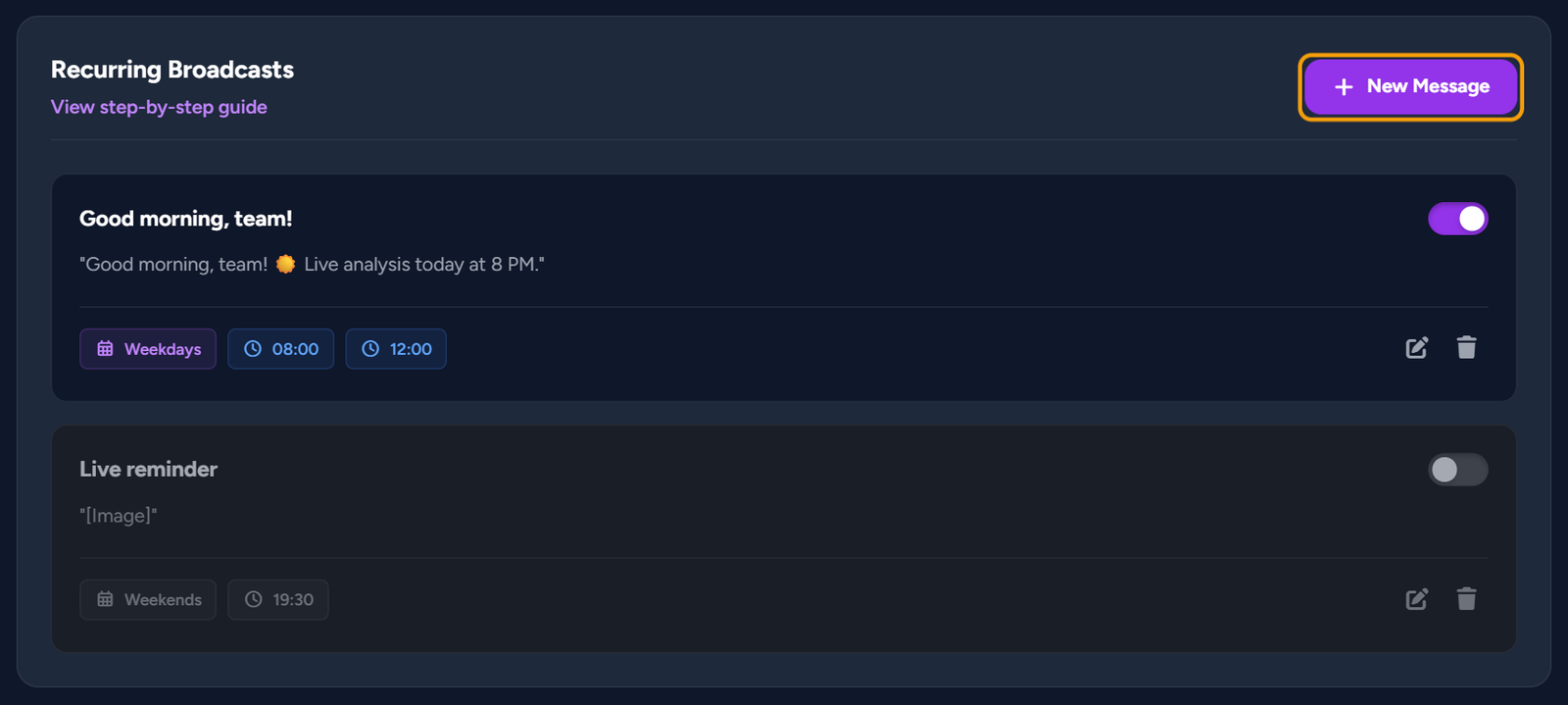
In the Messages menu, go to "Channel Messages" > "Recurring Broadcasts" and click "New Message".
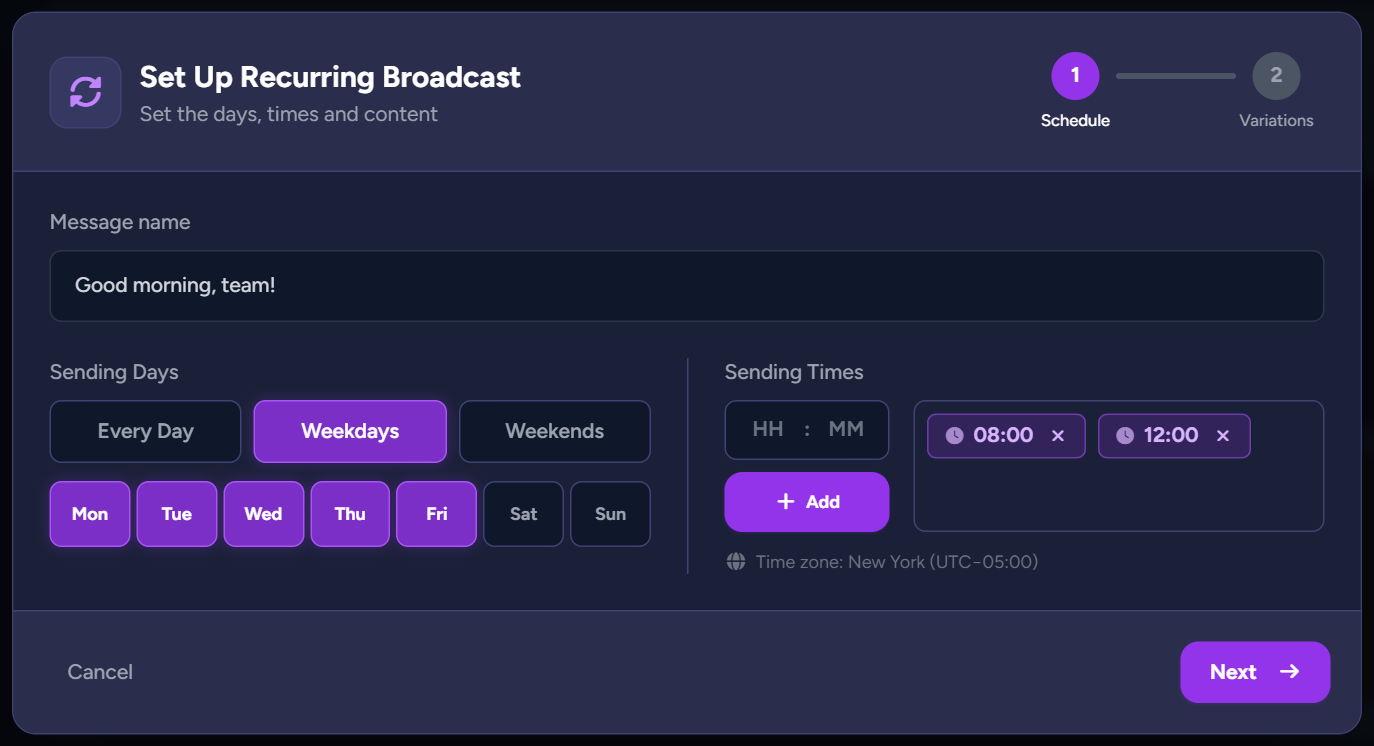
On the "Schedule" step of the "Set Up Recurring Broadcast" modal, fill in:
- "Message name": a name just for you to identify the broadcast (e.g. "Good morning, team!").
- "Sending Days": click the days or use the "Every Day", "Weekdays" or "Weekends" shortcuts.
- "Sending Times": type the hour and minutes (HH : MM) and click "Add". Repeat for each time. To remove a time, click its x.
Click "Next".
On the "Variations" step, click "New Variation", build the message in the editor (text, image, video, audio or round video, up to 5 blocks) and click "Save Variation". See Message editor.
Repeat to create more variations, if you want. On each variation you can edit, duplicate (a good starting point for a similar version) or delete.
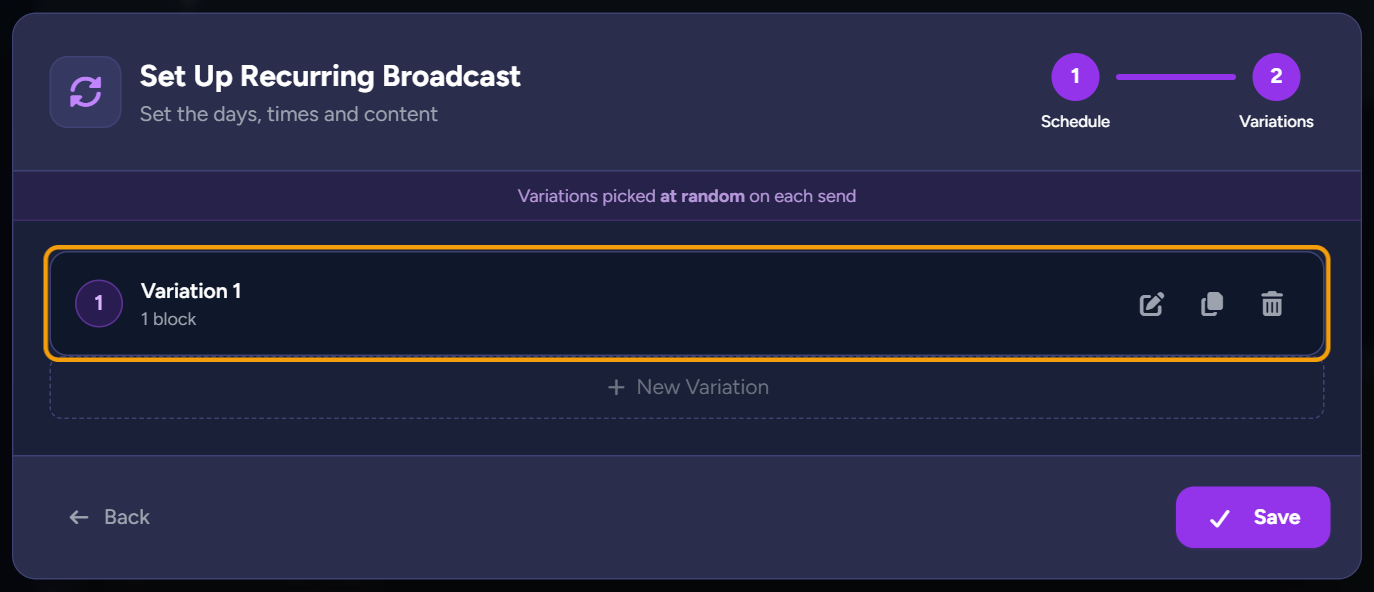
Click "Save". You'll see "Recurring broadcast created." and the broadcast is added to the list.
Write for the whole channel
The broadcast is a post in the channel, read by every member. Write it without the lead's name (without {first_name}).
Pause, edit or delete
In the list, each broadcast shows its name, the start of the message, the days and the times.
- Pause: turn off the broadcast's toggle. It turns gray and doesn't post until you turn it back on.
- Edit: click the pencil icon, adjust and save. You'll see "Recurring broadcast updated.".
- Delete: click the trash can and confirm with "Delete". The broadcast is deleted for good.
How to check it worked
- The broadcast shows up in the list with the toggle on, the days (e.g. "Weekdays") and the times.
- On the next day and time in the list, the message is posted in the channel by the message bot. The list doesn't show whether the post went out: to find out, check the channel.
Common problems
- "Next" is disabled: the name, at least one day or at least one time is missing.
- "Save" is disabled: the "Variations" step needs at least one variation with content ("Add at least one to save").
- "Couldn't save.": check the fields and try again.
- The message wasn't posted: check that the broadcast's toggle is on, that the day and time are in the list, that your subscription is active, that both bots are connected and that the message bot is still an administrator of the channel with permission to post. A time that went by without a post isn't posted later: once the problem is fixed, the broadcast goes out on its own on the next day and time in the list. If it keeps happening, contact support.