
Send the Test Event and confirm the events
The Test Event validates your pixel with Meta and makes the two channel events show up in Events Manager: enter_channel (joined the channel) and left_channel (left the channel). Once you confirm these events in Meta, they're unlocked to optimize your campaigns.
Before you start
- The pixel added to Track4you. See Add the pixel to Track4you.
- Meta Events Manager open in another tab, on the pixel you're going to test.
Step by step
In Events Manager, click your pixel and open the "Test events" tab. In the server events part, copy the test code (e.g.
TEST12345) with the "Copy" button. Keep that tab open.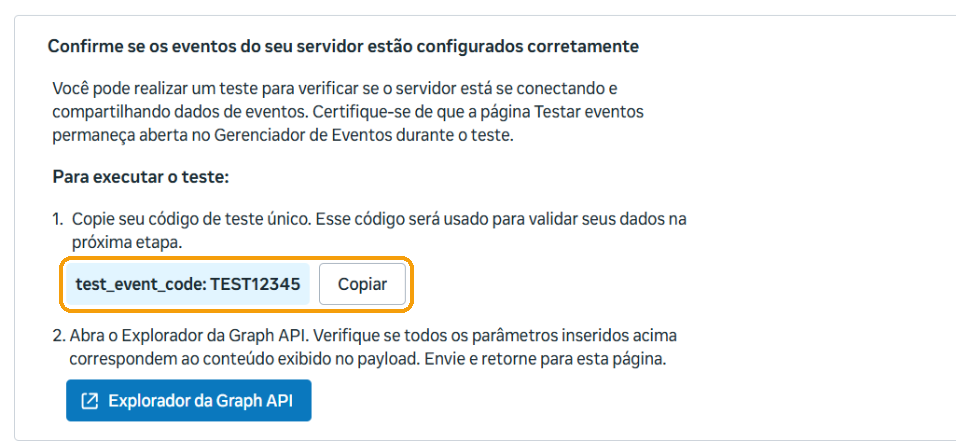
In Track4you, open the "Test Event":
- If you just added the pixel, it opens right after "Next".
- If the pixel already exists, open Pixels and click the paper plane on the pixel row.
Paste the code into "Test Code" and click "Send Test Event". Paste only the code (e.g.
TEST12345), without thetest_event_code:text.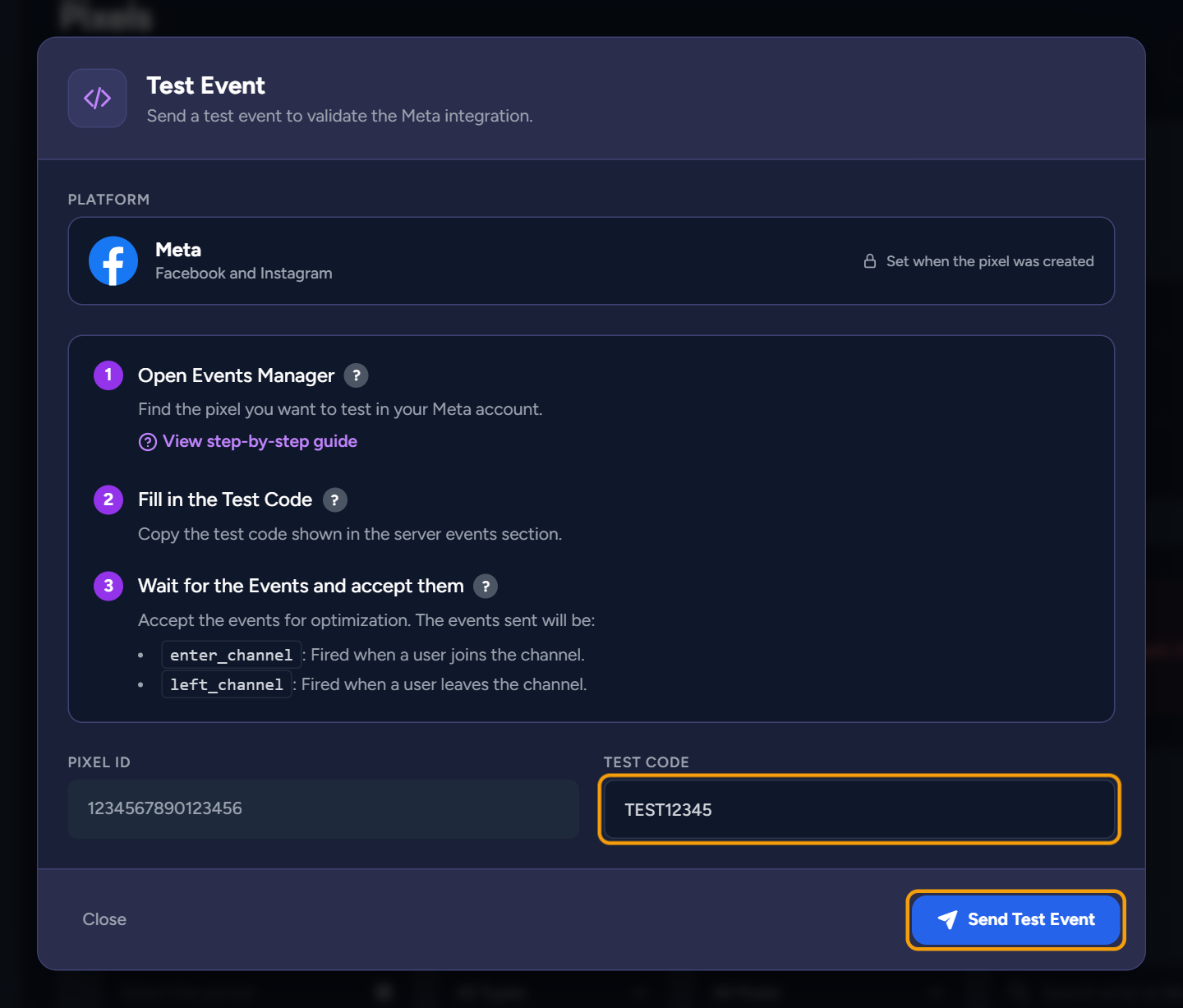
Go back to Meta's "Test events" tab and wait:
enter_channelandleft_channelarrive within moments.Both events show up with a warning sign (⚠️). Click the warning and confirm the event. Do it for both. From then on, they're available for campaign optimization.
Why confirm?
enter_channel and left_channel are custom events. Meta only lets you use a custom event in a campaign after you confirm it's yours. You only need to do this once per pixel.
How to check it worked
- In Meta's "Test events" tab,
enter_channelandleft_channelshow as received, with no warning sign after you confirm them. - In Track4you, the pixel's "Status" column in "My Pixels" shows "Waiting for events", and changes to "Receiving data" when the funnel's real events start arriving. If it hasn't changed yet, refresh the page.
Common problems
- The events don't show up in Meta: check that you pasted the code of the same pixel you're testing, with no spaces and without the
test_event_code:text. Copy the code again and resend. - The status stays "Inactive pixel": Meta didn't validate the send. Check the token and the pixel ID with the pencil on the row (see Change the pixel token without losing events) and send the Test Event again.
- The "Send Test Event" button stays disabled: fill in the "Test Code".
- I can't find where to confirm the event: look for the warning sign (⚠️) next to the event name in Events Manager and click it. If the event hasn't shown up yet, send the Test Event again with the "Test events" tab open.
Still have questions? Talk to support on WhatsApp.