
Leave message
The Leave message reaches the lead in a private chat when they leave the channel. It's your chance to win back whoever left: remind them what they're missing, offer a bonus or send a link to come back.
The message arrives even if the lead leaves days or weeks after joining, as long as they haven't blocked your message bot.
Before you start
- The message bot set up. See Set up the message bot.
- Leads joining through the link of a funnel with "Join Request": it's the same path that delivers the welcome message. See Join Request in the funnel.
Step by step
In the Messages menu, go to "Private Messages" > "Default Settings" and, on the "Leave" card, click "Set Up".
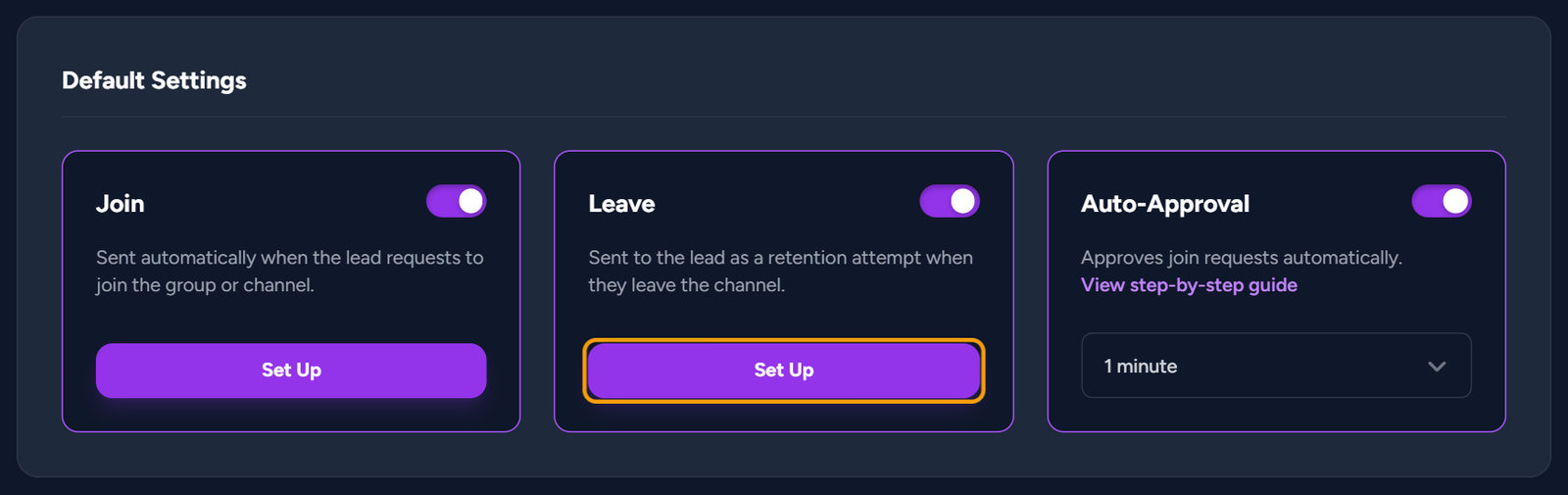
Build the message in the "Set Up Message" modal, with up to 5 blocks (text, image, video, audio, round video and delay). See Message editor.
Click "Save". You'll see "Default message saved!" and the toggle on the "Leave" card turns on.
Leave message example:
We miss you, {first_name}!
Come back anytime: the channel is still open for you.
[Button: Take me back]
What usually works in a leave message
- A short, personal message, with the lead's name.
- A reason to come back: a bonus, the next live, a recent result.
- A button with a link to your page, so the lead comes back the same way and stays in your tracking.
To change the message, click "Set Up" again, edit it and save.
How to check it worked
- With a personal Telegram account that is not an administrator of the channel, join the channel through your page (requesting to join through the funnel).
- Once approved, leave the channel.
- The leave message arrives in a private chat, sent by the message bot.
Common problems
- The modal's "Save" is grayed out: a block is empty or the text is still being edited. Fill in or delete the block and click "Save" inside the text block.
- The message didn't arrive: check that the lead joined through the link of a funnel with "Join Request" and that the message bot is still an administrator of the channel. See Automated messages don't reach the lead.