
Welcome message (Join)
The Join message reaches the lead in a private chat the moment they request to join your channel. It's the first contact: you can introduce yourself, call them by name, send the channel rules and hand over a resource right away.
Before you start
- The message bot set up. See Set up the message bot.
- A funnel with "Join Request" turned on. The welcome message goes to whoever requests to join through that funnel's link. See Join Request in the funnel.
Step by step
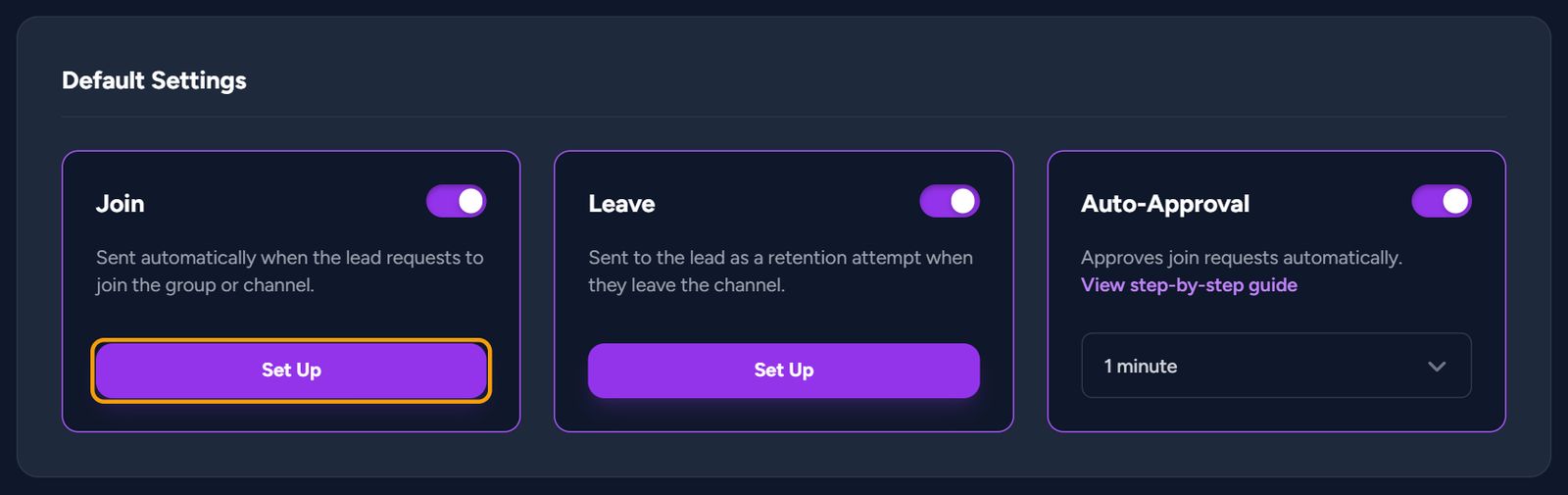
In the Messages menu, go to "Private Messages" > "Default Settings" and, on the "Join" card, click "Set Up".
In the "Set Up Message" modal, build the message with the "Add:" buttons (text, image, video, audio, round video and delay). You can use up to 5 blocks, and they reach the lead in the order shown on the screen. See every detail in Message editor.
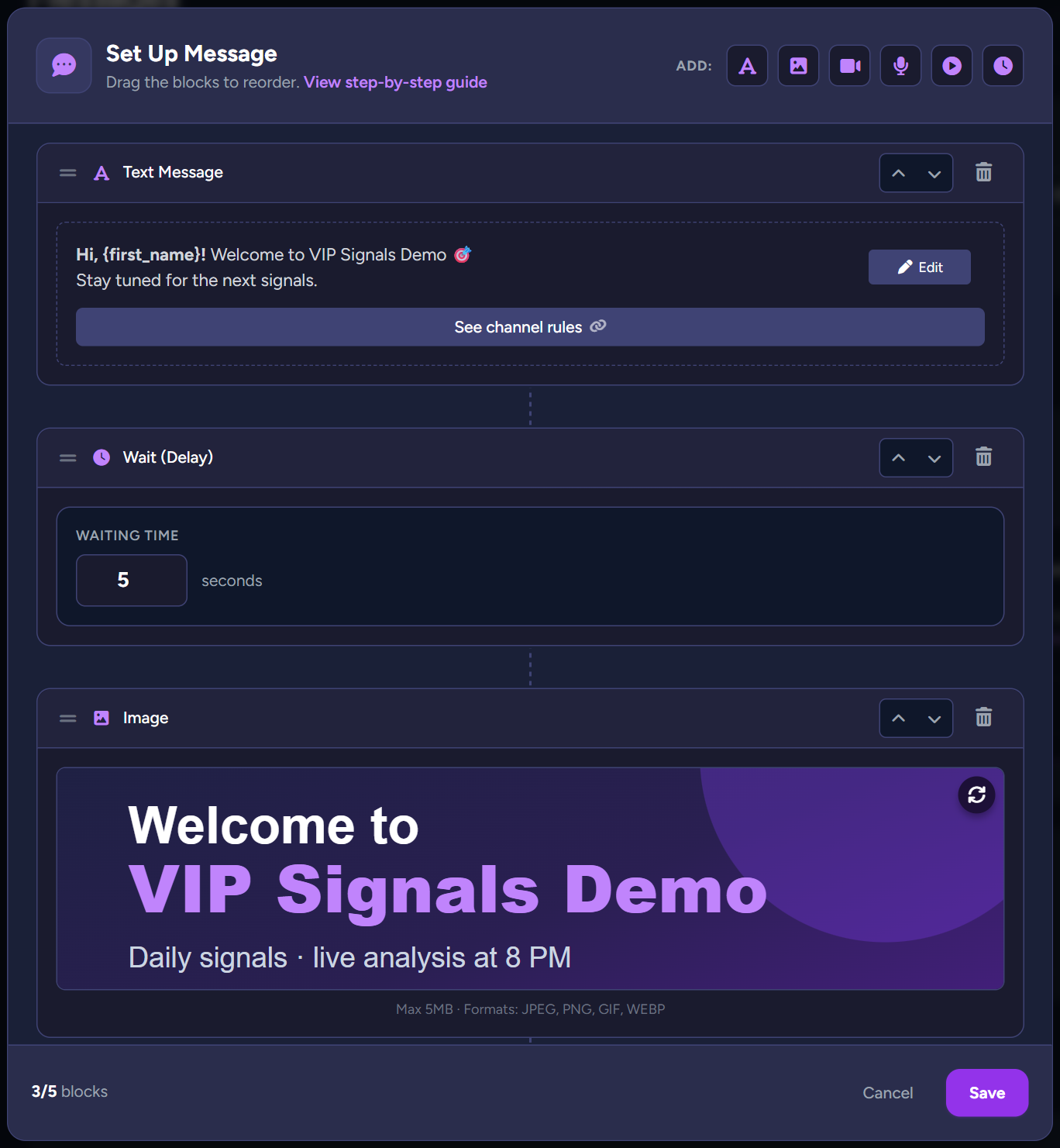
Click "Save". You'll see "Default message saved!" and the toggle on the "Join" card turns on.
Welcome message example:
Hi, {first_name}! Welcome to VIP Signals Demo.
Stay tuned for the next signals.
[Button: See channel rules]
{first_name} is replaced with the lead's first name on Telegram. Insert it with the {} button on the text block.
Combine it with automatic approval
With Auto-Approval on and a waiting time, the lead gets the welcome message as soon as they request to join and is approved afterwards. That way they read your message before landing in the channel. See Automatic approval (Auto-Approval).
To change the message later, click "Set Up" again, edit it and save. The new version applies from then on.
How to check it worked
- With a personal Telegram account that is not an administrator of the channel, open your page and click the button that leads to the channel.
- Request to join the channel.
- The welcome message arrives in a private chat, sent by the message bot.
Common problems
- The modal's "Save" is grayed out: a block is empty (text with no content or media with no file) or the text is still being edited. Fill in or delete the block and click "Save" inside the text block.
- The button shows "Loading...": wait for the file to finish uploading and click "Save".
- The message didn't arrive: check that the lead requested to join through the link of a funnel with "Join Request" and that the message bot is still an administrator of the channel. See Automated messages don't reach the lead.