
Connect your channel to Track4you
Connecting the channel is the first step of advanced tracking: from here on, Track4you identifies who joins and who leaves your Telegram channel. Each Track4you channel is linked to 1 Telegram channel, on every plan. To track another one, see Track more than one channel.
Before you start
- The tracking bot created and its token in hand. See Create the tracking bot in BotFather.
- Be an administrator of the channel on Telegram.
- An active subscription on Track4you.
- Recommended: a private channel. See Public or private channel?.
Step by step
In Telegram, make the bot an administrator of the channel. Open the channel, tap its name to open the channel info and go to Administrators → Add Admin. Search for the bot's username (e.g.
@vipsignalsdemo_track_bot), turn on all permissions and save.In Track4you, open Channel in the menu and click "New Channel".
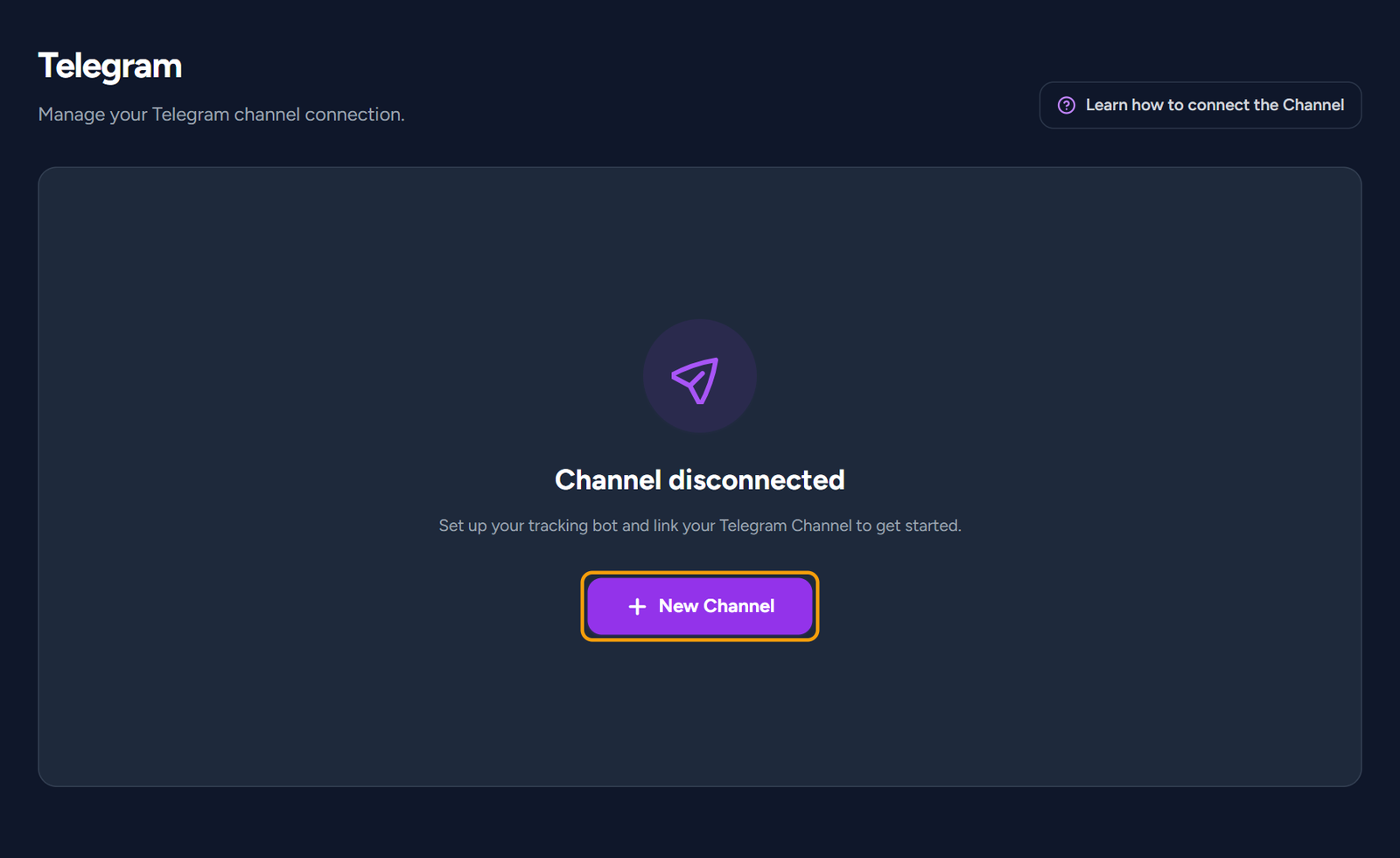
The "New Channel" modal opens on the "Bot" step, with a guide to what you already did in Telegram ("Create a Bot in @BotFather" and "Add the Bot to the Channel").
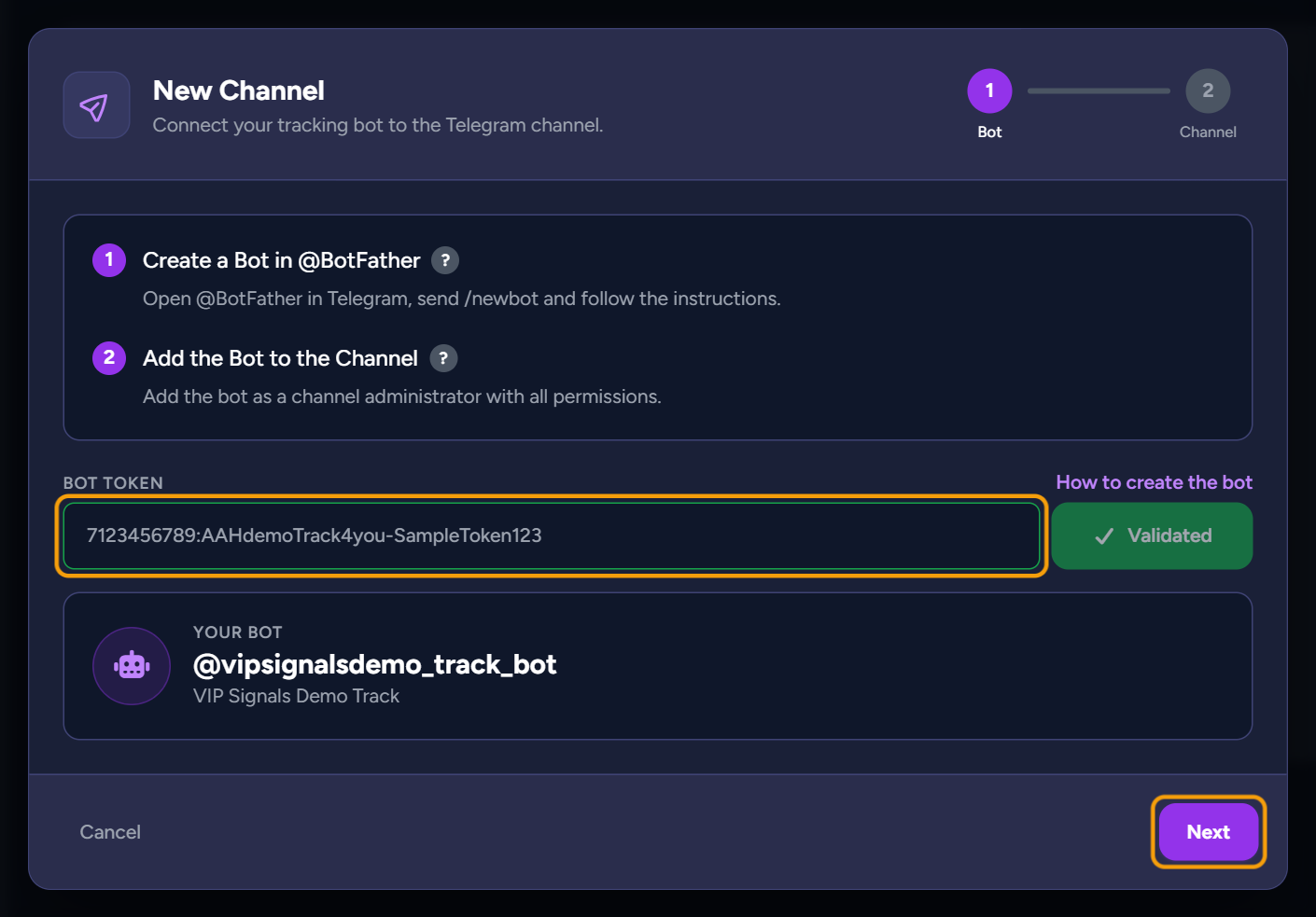
Paste the token into "Bot Token" and click "Validate Token". When the token is correct, the button changes to "Validated" and your bot shows up under "Your bot". Click "Next".
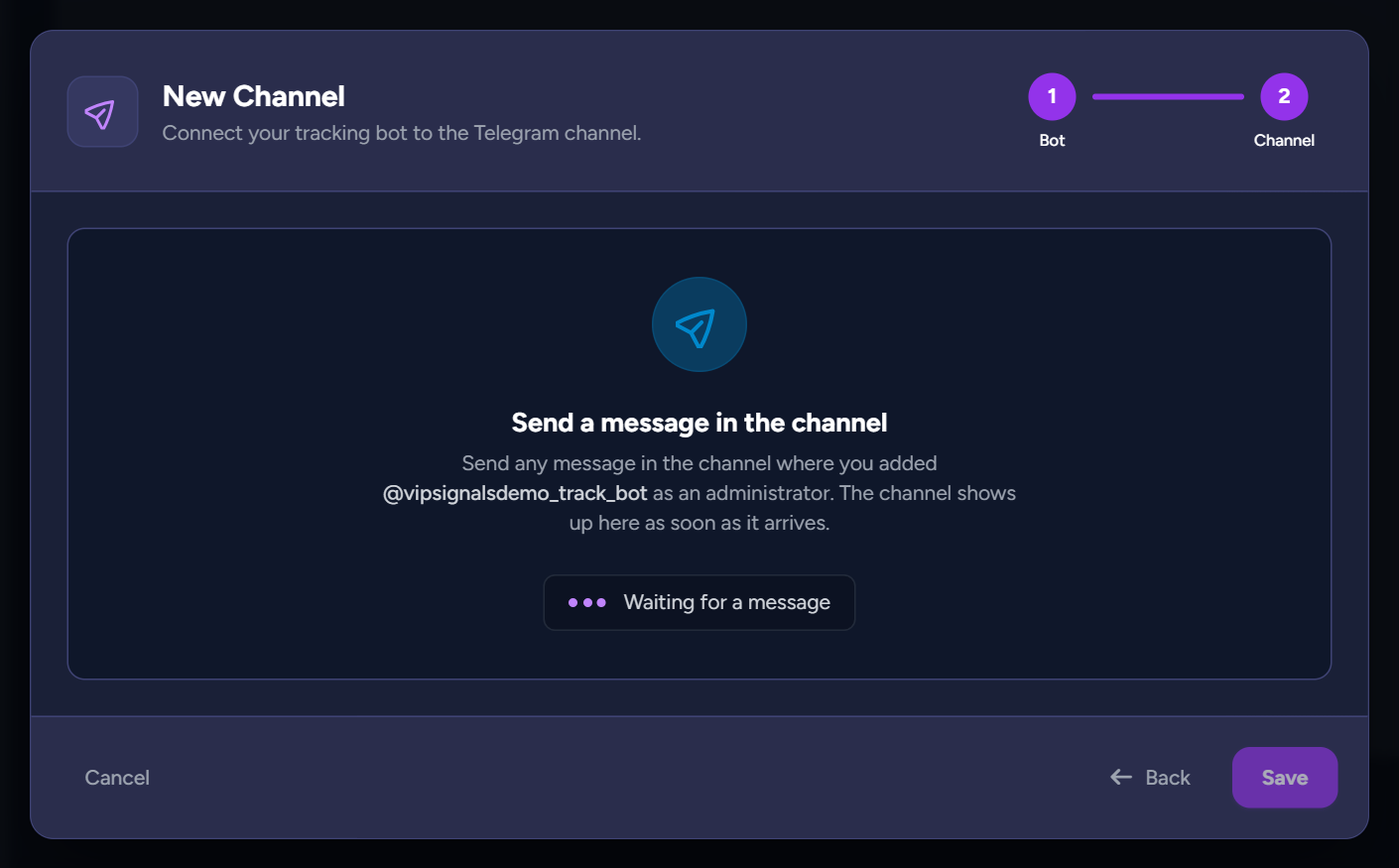
On the "Channel" step, the modal shows "Send a message in the channel" and "Waiting for a message". Send any message in the channel where you added the bot as an administrator (a simple "ok" will do). The channel shows up as soon as the message arrives. You can delete the message afterwards.
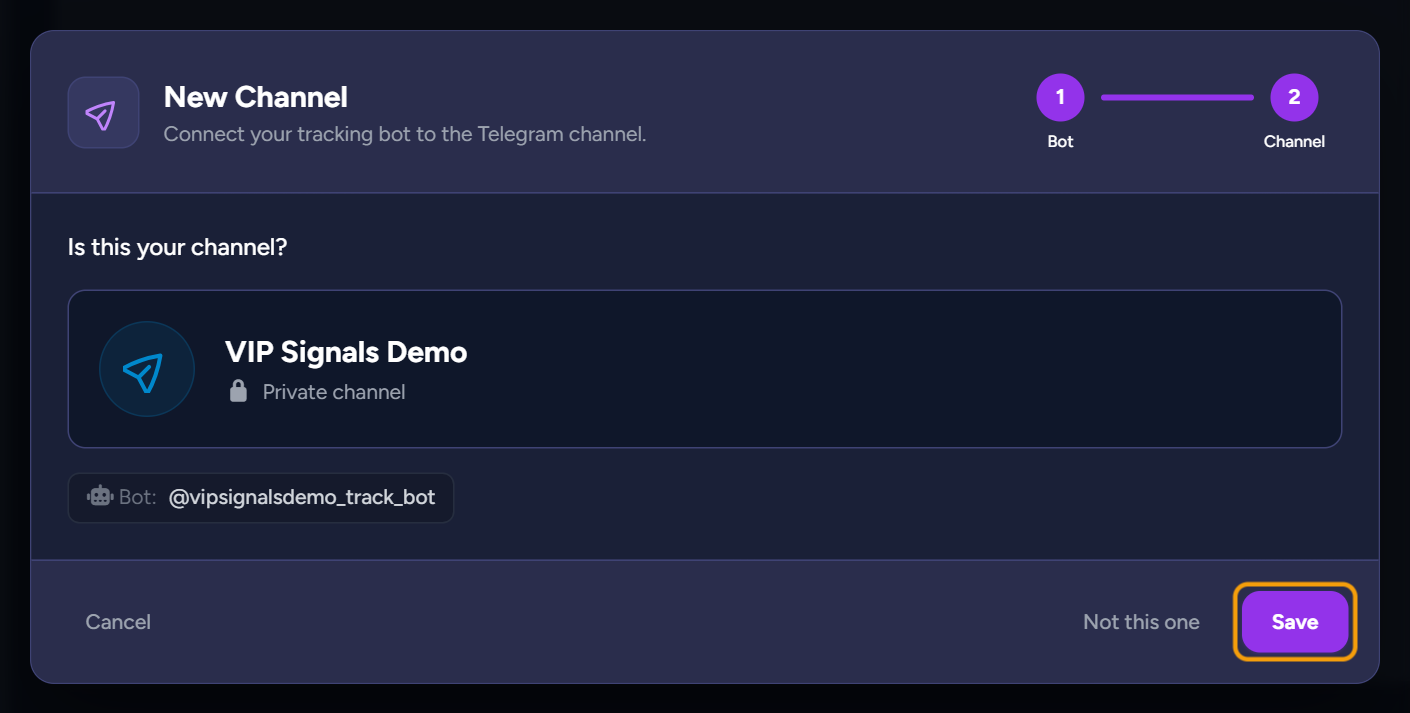
Under "Is this your channel?", check the channel's name and photo. If it's the right one, click "Save". You'll see the message "Channel set up!".
One channel, one account
Each Telegram channel is connected to a single Track4you account. If the same channel is connected in another account, the previous connection and the funnels linked to it in that account stop existing.
How to check it worked
The Channel screen shows the "Configured Channel" card with the channel name, the "Active" badge, the bot's username and the masked token. Right below, in "Integration Status", the "Connection with Track4you" and "Connection with the Channel" lines show "Connected!". With a private channel, every line is green.
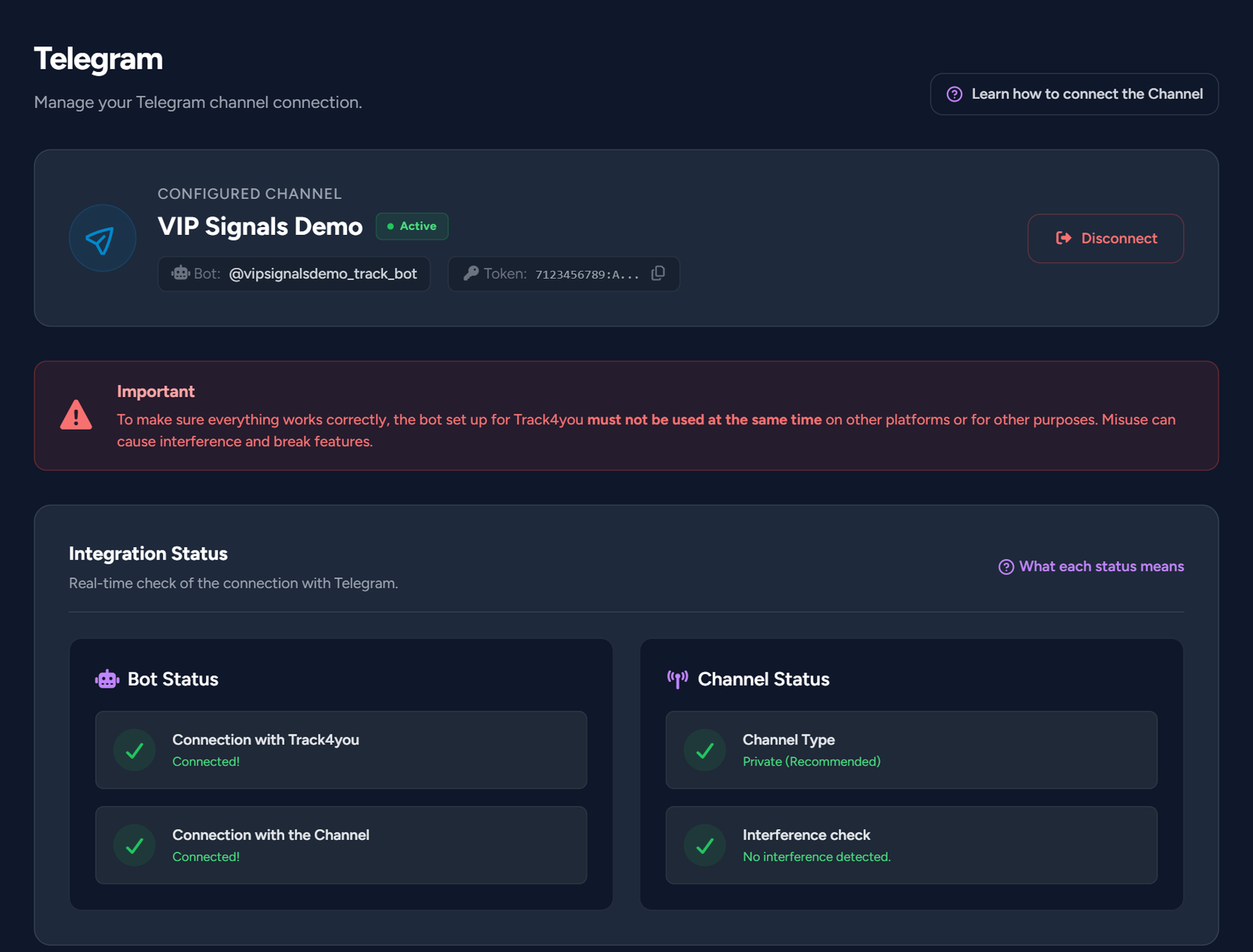
Important
The bot set up for Track4you must not be used at the same time on other platforms or for other purposes. Using it somewhere else interferes with tracking.
To understand each line of the check, see Channel integration status.
Common problems
- "Invalid token.": the token was copied only partly or with a space. Copy the whole @BotFather message again and paste it once more.
- The modal stays on "Waiting for a message": check that the bot is an administrator of the channel and send a new message in it. If you've already sent it and nothing happened, the modal shows "Not showing up?": create a new bot in @BotFather and try again with the new token.
- "We stopped waiting after 10 minutes without a message.": click "Keep waiting" and send a new message in the channel.
- The channel that showed up isn't yours: the bot is in more than one chat. Click "Not this one" and send a message in the right channel.
- "Maximum number of channels reached": the open channel already has a Telegram channel connected. To change it, see Change channels or disconnect. To track both, see Track more than one channel.
- "New Channel" opens a subscription notice: your subscription isn't active. See Overdue payment or canceled subscription.
- Saved, but "Connection with the Channel" is red: the bot isn't in the channel as an administrator. Add the bot as an administrator, with all permissions, and reload the Channel screen.
Still stuck? Contact support.