
Set up the message bot
The message bot is the one that talks to your lead: it sends the private messages (welcome and leave) and posts the broadcasts in the channel. It's a second bot, separate from the tracking bot you connected in the Channel menu.
Before you start
- A channel connected in the Channel menu. See Connect your channel to Track4you.
- At least one funnel with "Join Request" turned on (that's what unlocks the Messages menu). See Join Request in the funnel.
- A bot different from the tracking bot. It can be a new bot or one you already use in a FlowBuilder tool.
Step by step
In Telegram, open @BotFather. For a new bot, send
/newbot, choose a name and a username ending inbot(e.g.@vipsignalsdemo_msg_bot). If you already have a bot, send/mybotsand select it. Copy the HTTP API token that BotFather shows.In your Telegram channel, open the channel settings > Administrators > Add Admin, search for the message bot's username and add it. Keep the Post Messages permission turned on. The simplest option is to turn on every permission, as you did with the tracking bot.
In Track4you, open the Messages menu and click "Set Up Bot".
Paste the token into the "Bot Token" field and click "Validate Token". When "Valid token and channel found!" shows up, the button changes to "Validated".
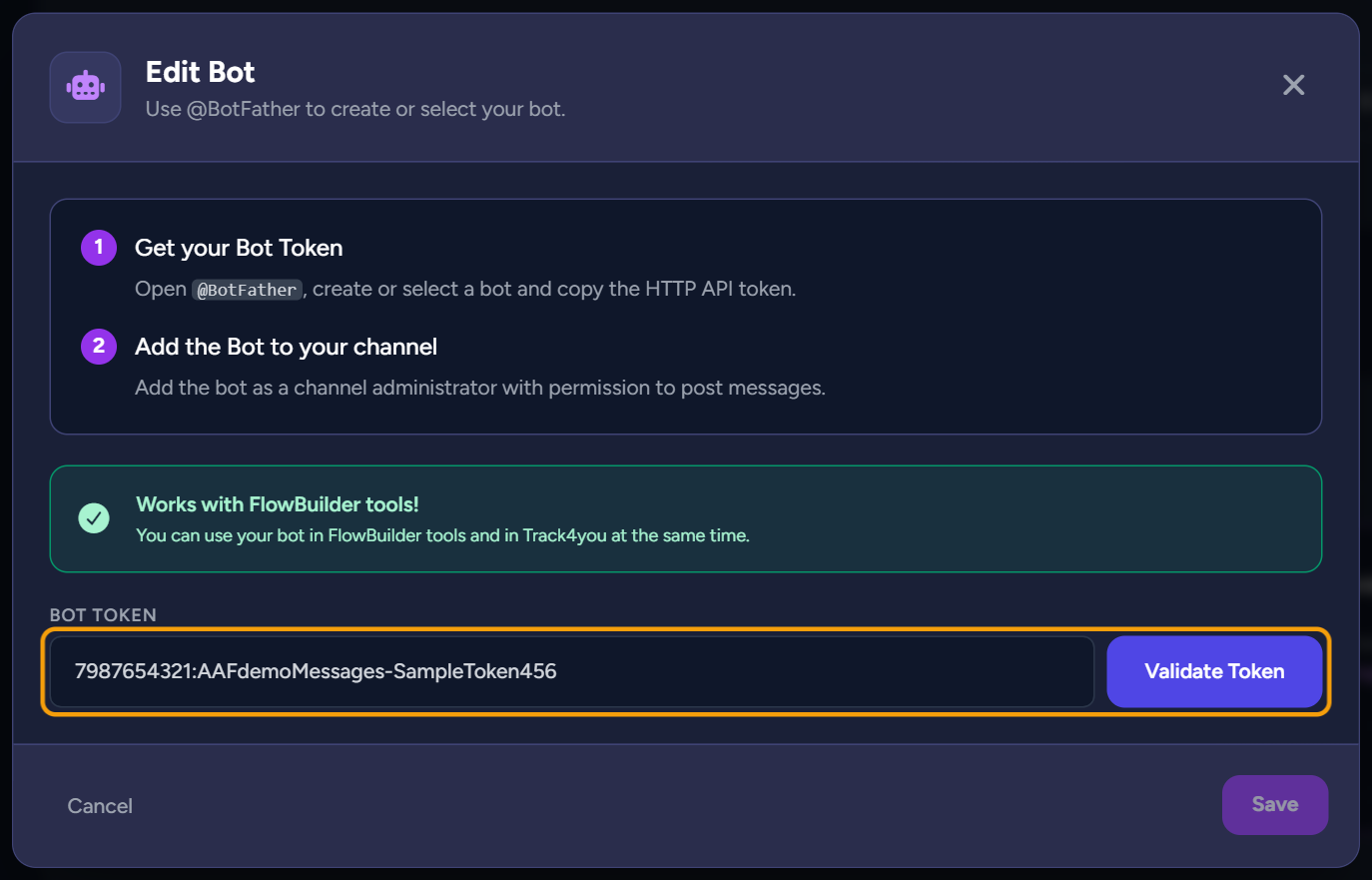
Click "Save". You'll see the message "Bot set up!".
The token is a secret
The token gives full control of the bot. Don't share it in a group, a screenshot or an email. If it leaks, generate a new one in @BotFather (/revoke) and set it up here again.
You can use it in FlowBuilder too
Unlike the tracking bot, the message bot can be used in FlowBuilder tools, such as Flow4You, and in Track4you at the same time. The screen confirms this with the "Works with FlowBuilder tools!" badge.
How to check it worked
After you save, the top of the page shows the "Messages Bot" card with the bot's username and the masked token. Right below it, the "Private Messages" and "Channel Messages" sections show up.

Change or remove the message bot
- "Edit" opens the saved bot so you can check the username and the token.
- To use another bot, click "Disconnect", confirm with "Disconnect" and set up the new bot with "Set Up Bot". While no bot is connected, automated messages aren't sent.
Common problems
- "Invalid token format.": the token wasn't copied in full. It has the format
numbers:letters, with no spaces. Copy it again from @BotFather. - "Invalid token.": the token was typed wrong or was revoked. Get the current token from @BotFather.
- "Add the Bot to the configured channel.": the bot isn't an administrator yet of the channel connected in the Channel menu. Redo step 2 and validate again.
- "This bot is already registered as a channel bot.": you used the tracking bot's token. Create or use another bot for messages.
- "This Bot is already registered.": this bot is already in use in Track4you, as a tracking bot or a message bot. Use a bot that isn't registered yet.
- "You have already registered this messages bot.": this bot is already saved as the message bot in your account.
Still stuck? Contact support.