
Send the Test Event in TikTok
The Test Event validates the link between your pixel and TikTok. And here's good news compared to Meta: on TikTok you don't need to accept anything. The events that matter are standard TikTok events, ready for campaign optimization.
Before you start
- The TikTok pixel added to Track4you. See Add the TikTok pixel to Track4you.
- TikTok Events Manager open in another tab, on the pixel you're going to test.
Step by step
In TikTok Events Manager, select the pixel and go to the "Test Events" tab. Copy the test code: it starts with
TEST(e.g.TEST12345). Keep that tab open.In Track4you, open the "Test Event":
- If you just added the pixel, it opens right after "Next".
- If the pixel already exists, open Pixels and click the paper plane on the pixel row.
Paste the code into "Test Code" and click "Send Test Event".
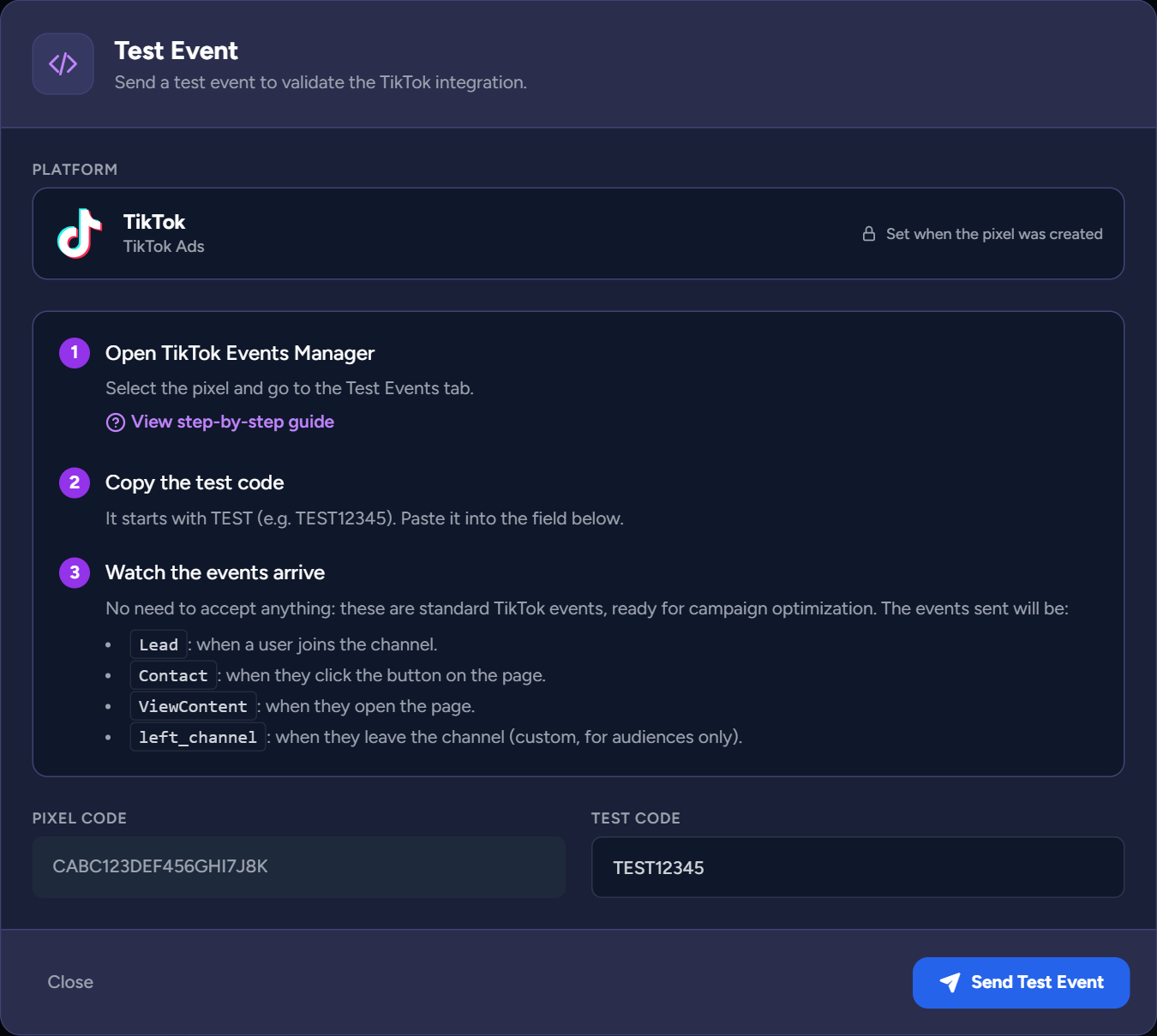
The screen confirms with "Test event sent". Go back to TikTok's "Test Events" tab and check.
Which events are sent
| Event | When it happens in the funnel |
|---|---|
Lead | When a user joins the channel |
Contact | When they click the button on the page |
ViewContent | When they open the page |
left_channel | When they leave the channel (custom, for audiences only) |
See the details in Events your TikTok pixel receives.
Different from Meta
On Meta, the channel events are custom and need to be confirmed in Events Manager. On TikTok, the channel join arrives as Lead, a standard event, so there's no such step.
How to check it worked
- In Track4you, the screen shows "Test event sent". That confirms the send.
- In TikTok's "Test Events" tab, you can follow what arrived.
- In the "Status" column of "My Pixels", the pixel moves to "Waiting for events" and changes to "Receiving data" when the funnel's real events start arriving. See TikTok pixel status and errors.
Common problems
- "Couldn't send the test event. Check the pixel code, the token and the test code.": check the pixel details with the pencil on the row and copy the test code again.
- "The TikTok pixel is available on the Pro and Enterprise plans.": the pixel is paused because your plan doesn't include TikTok. See Change your plan.
- I sent it, but I don't see it in the TikTok tab: check that you copied the test code of the same pixel you're testing, with no spaces, and send it again.
- The "Send Test Event" button stays disabled: fill in the "Test Code".
Still have questions? Talk to support on WhatsApp.