
Different messages per funnel
With "Custom (Per Funnel)" rules, whoever arrives through a specific funnel gets their own messages, different from the "Default Settings". Example: the lead from the launch funnel gets a welcome message about the offer, and the lead from the organic group gets another one, about the daily content.
Before you start
- At least 2 funnels added. With fewer, the button shows up locked with the notice "Available once you have 2 funnels.". See Create a funnel.
- The rule's funnel with "Join Request" turned on: private messages go to whoever requests to join through its link. See Join Request in the funnel.
- The message bot set up. See Set up the message bot.
Step by step
In the Messages menu, go to "Custom (Per Funnel)" and click "New Rule".
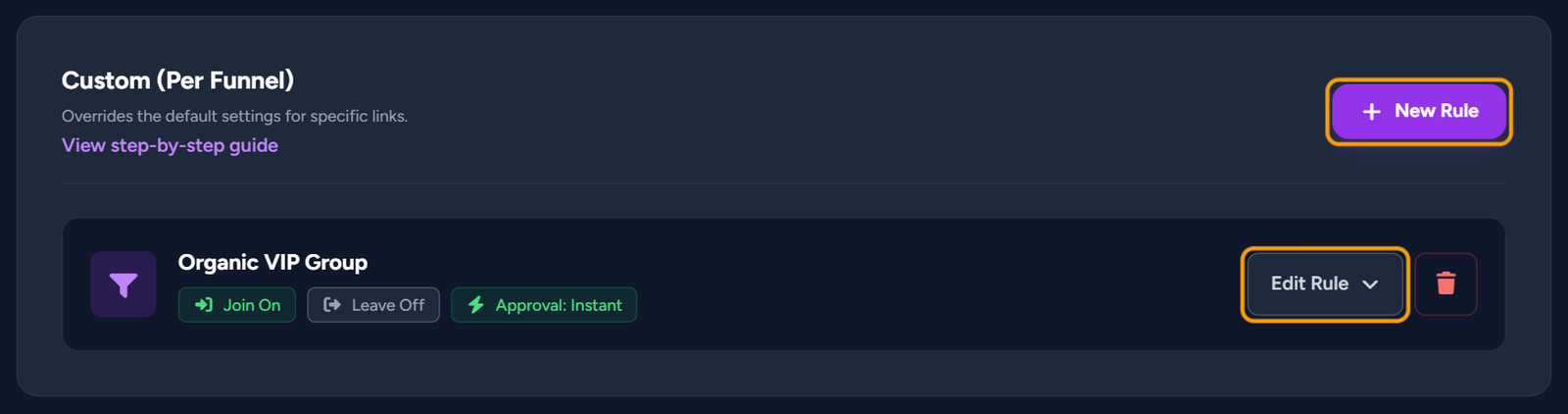
In the "Select Funnel" modal, choose the funnel under "Select a funnel" and click "Confirm". The funnel shows up in the list of rules.
Click "Edit Rule" to open that funnel's "Join", "Leave" and "Auto-Approval" cards.
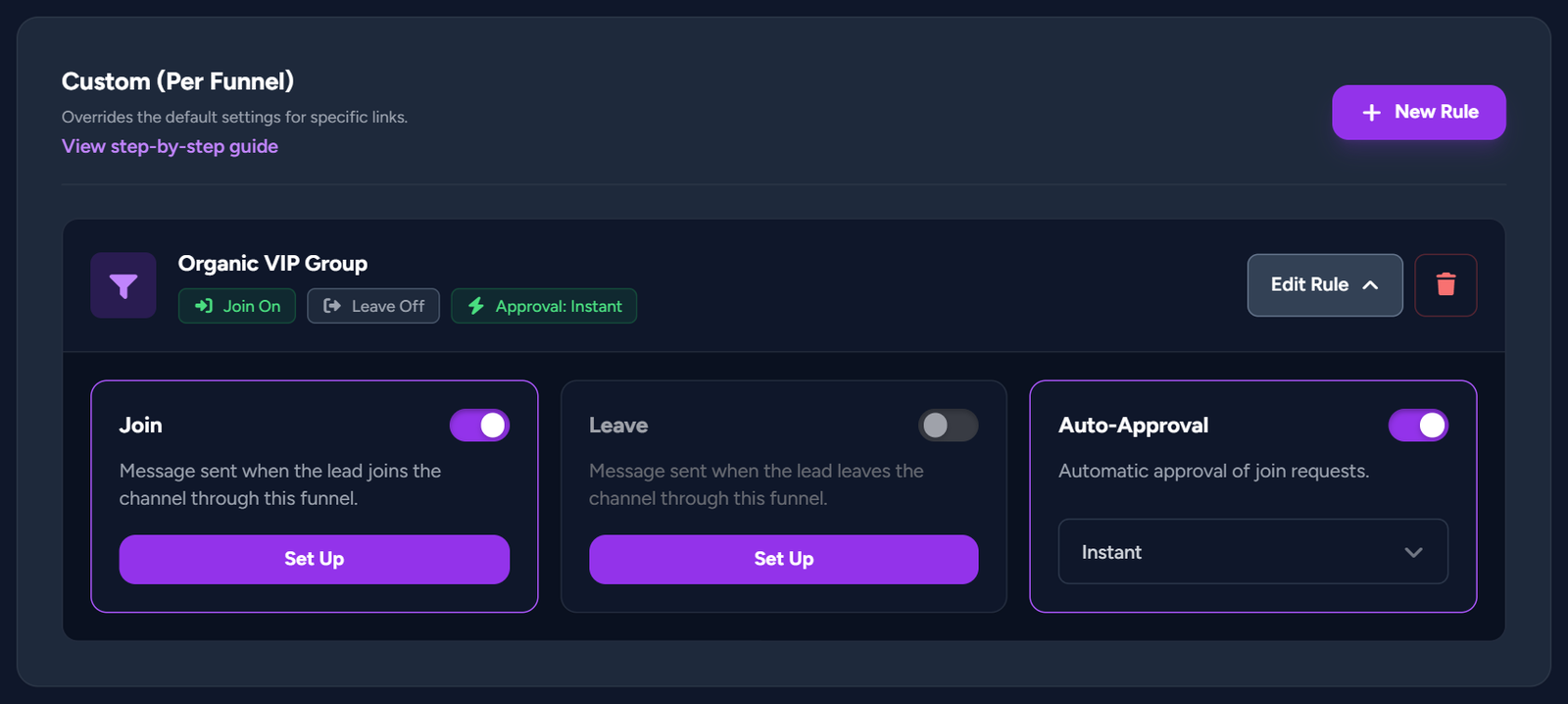
Under "Join" and/or "Leave", click "Set Up", build the message in the editor and click "Save". You'll see "Custom message saved!". See Message editor.
If you want this funnel to have its own approval time, turn on the rule's "Auto-Approval" and choose the waiting time. You'll see "Updated.".
Set something up so the rule is saved
After "Confirm", the rule is only stored once you save at least one message (Join or Leave) or change its Auto-Approval. If you leave the page before that, the rule doesn't stay in the list.
Set up the Leave message in the rule too
Whoever arrives through a funnel with a rule gets the rule's Leave message. If you want a leave message for that funnel, set up "Leave" inside the rule, in addition to Join.
How to read the list of rules
Each rule shows the funnel name and labels summarizing what's set up: "Join On" or "Join Off", "Leave On" or "Leave Off" and the approval time (e.g. "Approval: 1min").
When every funnel already has a rule, the modal shows "All funnels have already been added.".
Remove a rule
Click the rule's trash can and confirm with "Remove". You'll see "Removed." and the funnel goes back to following the "Default Settings".
How to check it worked
With a personal Telegram account that is not an administrator of the channel, request to join through the page of the rule's funnel. The welcome message that arrives in the private chat is the rule's, not the default one.
Common problems
- "New Rule" is locked: you have fewer than 2 funnels. Create another funnel.
- The rule disappeared when reloading: it was created, but nothing was saved in it. Create it again and save a message (step 4).
- "Couldn't save." or "Couldn't remove.": try again. If it keeps happening, contact support.