
Integration Test Event
The Test Event confirms that the integration can deliver the event to your pixel before any real conversion. It's required when you create the integration, and you can repeat it whenever you want.
Before you start
- Meta's Events Manager open on the integration's pixel, on the "Test events" tab.
- Copy the test code Meta shows there (e.g.
TEST12345).
Step by step
When creating the integration, get to the "Facebook" step. For an integration you've already created, click the "Test Event" icon (paper plane) in the list.
Paste the code into "Test Code". The field takes at least 4 characters and switches to uppercase with no spaces by itself.
Click "Send Test Event". The button shows "Sent!" when the send works.
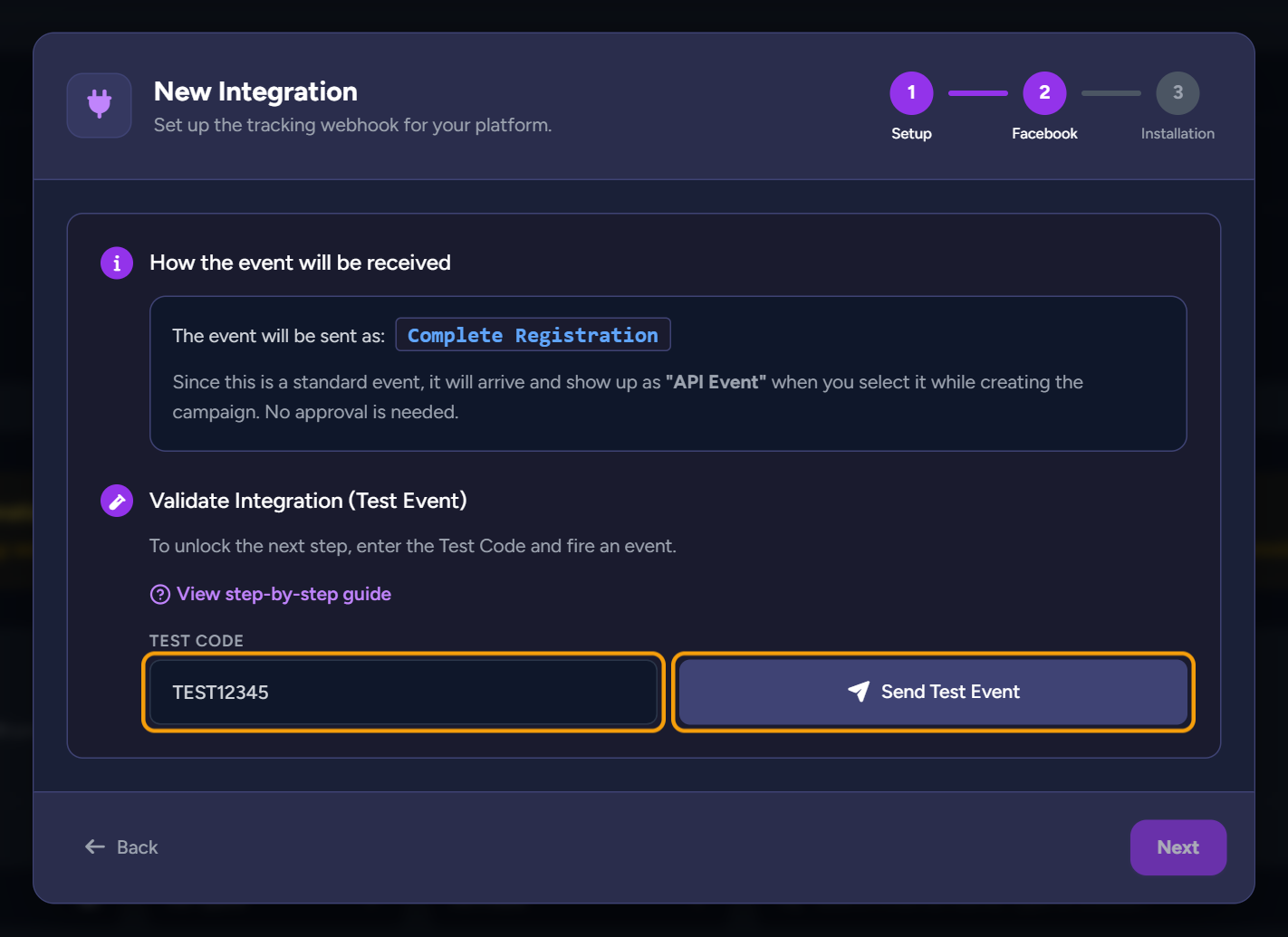
Go back to Events Manager: the event shows up in the list of test events within a few seconds.
FTD and Custom: confirm the event
With these two types, the event arrives with a warning (⚠️) on Meta's test screen. Click it and confirm the event. Only after that does it show up to be selected when you create the campaign.
The Test Event doesn't go into your metrics
It's marked as a test for Meta and doesn't go into the campaign reports or into Track4you's "Event History".
Common problems
- The event doesn't show up in Events Manager: check that you're looking at the same pixel chosen in the integration and that the test code is the current one (it changes from time to time).
- Error when sending: the pixel token may be invalid or expired. See Update the pixel token.