
Channel integration status
The Channel screen has a real-time check of your channel's connection with Track4you. When everything is green, tracking is working. If something goes wrong, the check shows exactly where, and the app lets you know.
Where to see it
Open Channel in the menu. Below the channel card is "Integration Status", with two parts: "Bot Status" and "Channel Status".
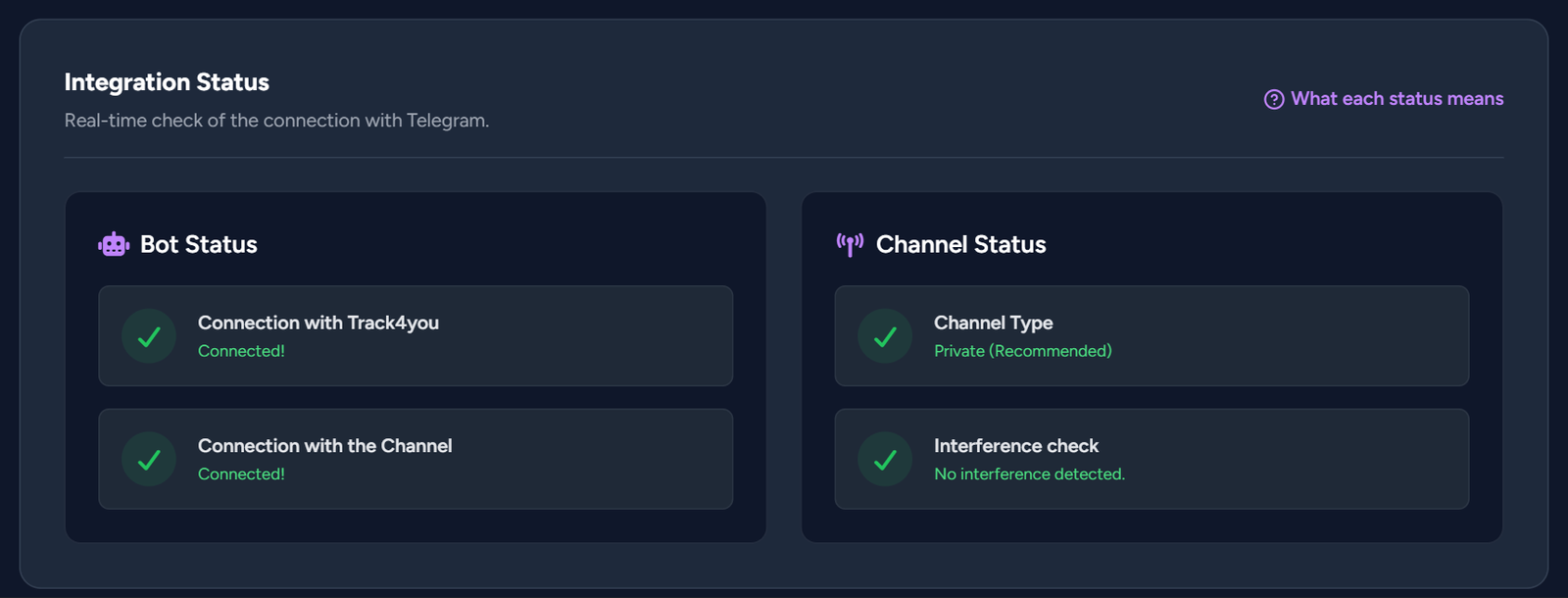
What each line means
| Line | All good | Needs attention | What to do |
|---|---|---|---|
| "Connection with Track4you" | "Connected!" | "Not found! Redo the setup." | The bot token changed or the bot was used in another tool. Generate a new token in @BotFather and use "Reconnect". See Reconnect the bot with a new token |
| "Connection with the Channel" | "Connected!" | "Not found! Add the bot to the Channel." | The bot left the channel or lost its administrator role. Add the bot again as an administrator, with all permissions |
| "Channel Type" | "Private (Recommended)" | "Public! We recommend a private channel." | The channel works, but without Join Request. See Public or private channel? |
| "Interference check" | "No interference detected." | — | Keep the bot exclusive to Track4you |
When any "Bot Status" line turns red, the "Channel Status" lines only show a dash ("—") until the connection is back.
The card badge
On the "Configured Channel" card, next to the channel name:
- "Active" (green): the connection is working.
- "Inactive" (red): one of the connections failed. In that case, the "Reconnect" button shows up too.
The "The channel connection was lost" notice
If the connection drops, the app shows a notice on every screen (except the Channel screen itself): "The channel connection was lost", with the alert "All your tracking is inactive.". It shows up again on every screen you open until the connection is fixed.
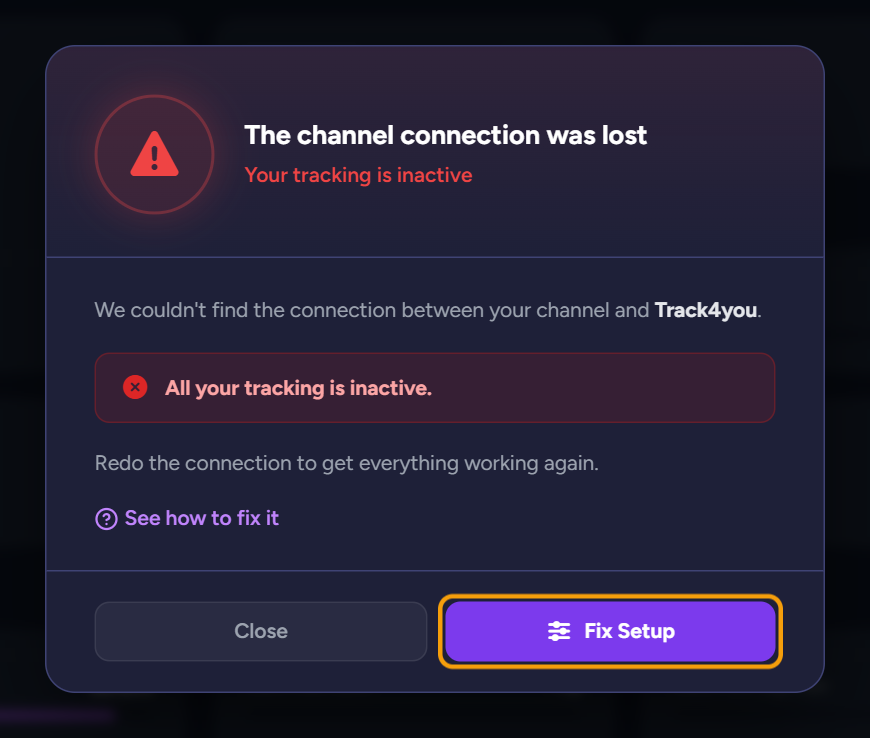
Click "Fix Setup" to go straight to the Channel screen, see which line is red and follow the "What to do" column of the table above.
Fix it as soon as possible
While the connection is lost, channel joins aren't tracked. Fix it as soon as the notice shows up so you don't leave a campaign running without data.
Common problems
- The notice showed up right after I used the bot in another tool: the tracking bot must be exclusive to Track4you. Remove the bot from the other tool, generate a new token in @BotFather and reconnect. See Reconnect the bot with a new token.
- Someone removed the bot from the channel: add the bot again as an administrator, with all permissions, and reload the Channel screen.
- I fixed it, but the badge still says "Inactive": reload the Channel screen. If it doesn't change, contact support.
More details in "The channel connection was lost".