
One-time broadcasts: send now or schedule
One-time Broadcasts post a message in your channel just once: right away or on the date and at the time you schedule. Use them to announce tonight's live, release a bonus or share news.
Before you start
- The message bot set up and an administrator of the channel with permission to post messages: it's the one that posts. See Set up the message bot.
Step by step
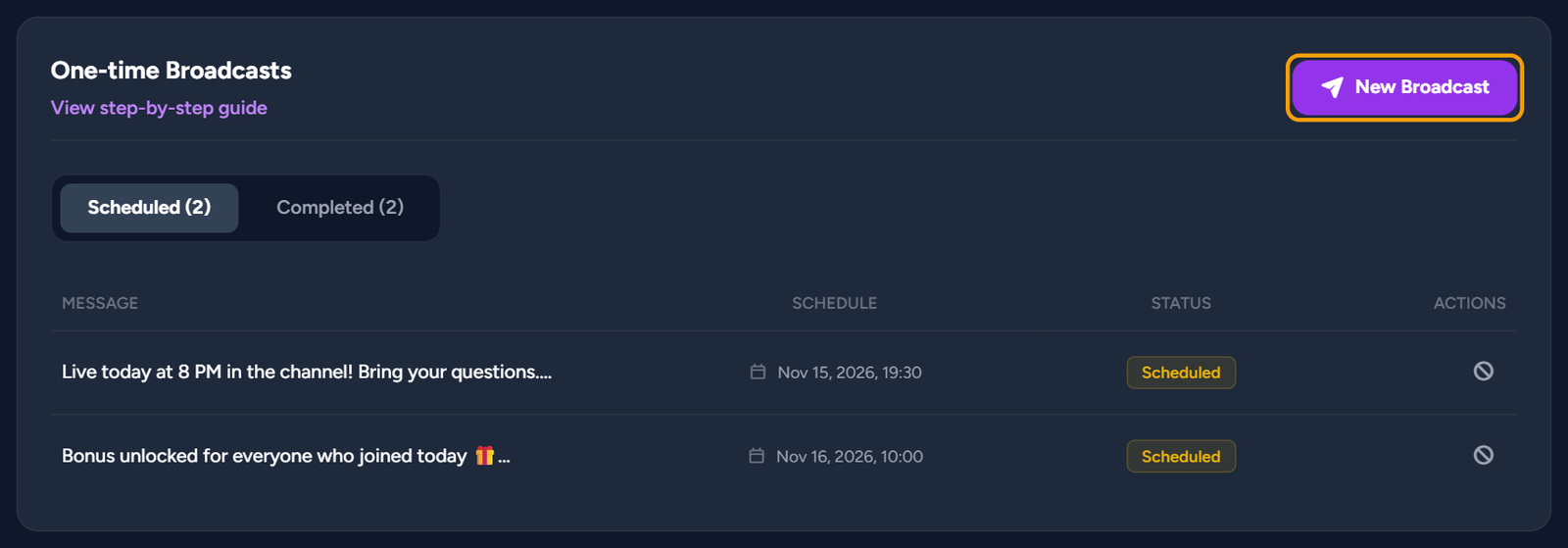
In the Messages menu, go to "Channel Messages" > "One-time Broadcasts" and click "New Broadcast".
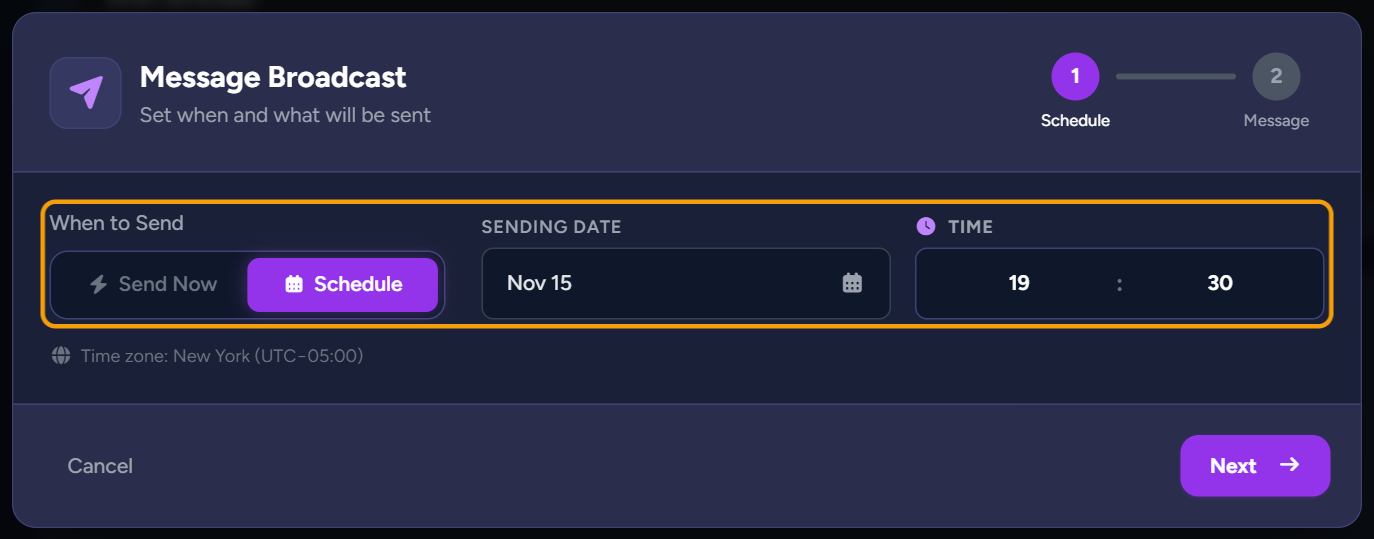
On the "Schedule" step of the "Message Broadcast" modal, choose "When to Send":
- "Send Now": the message is posted as soon as you finish.
- "Schedule": choose the "Sending Date" on the calendar and the "Time" (hour and minutes).
Click "Next".
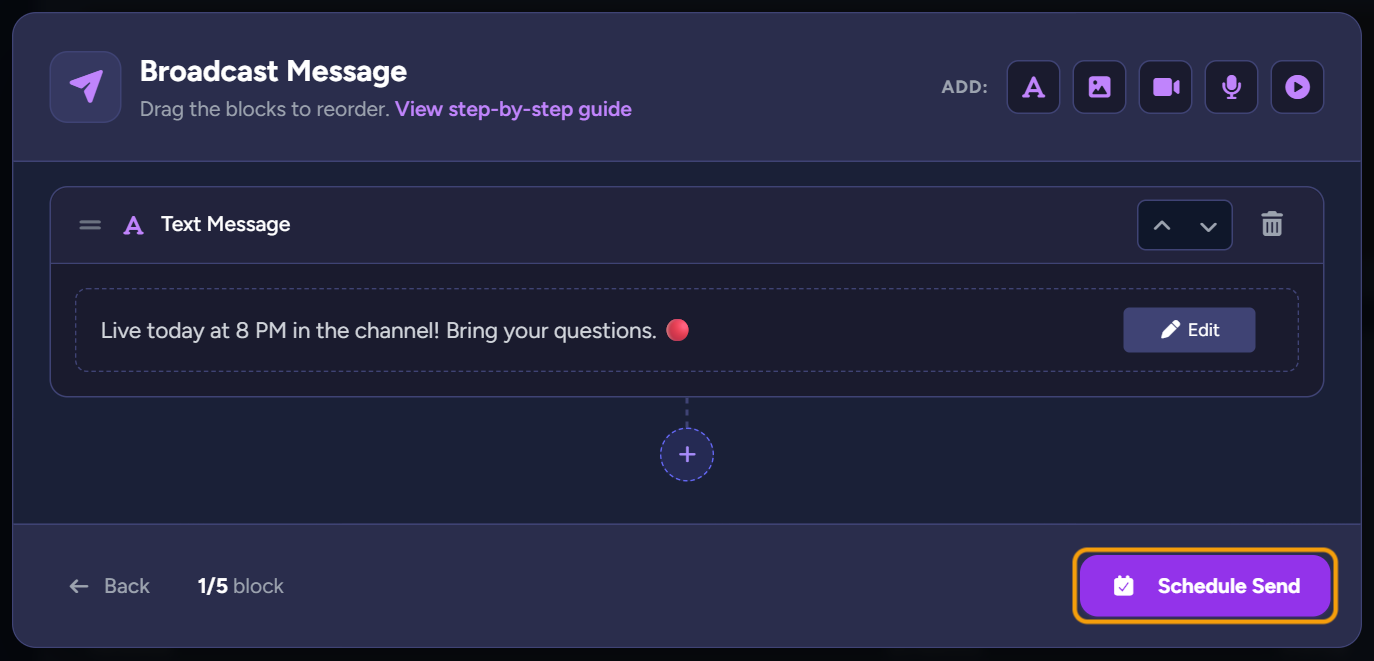
On the "Broadcast Message" step, build the message (text, image, video, audio or round video, up to 5 blocks). See Message editor.
Click "Send Message" (if you chose to send now) or "Schedule Send" (if you scheduled it). You'll see "Message sent." or "Broadcast scheduled.".
Write for the whole channel
The broadcast is a post in the channel, read by every member. Write it without the lead's name (without {first_name}).
Keep track of your broadcasts
The list has two tabs:
- "Scheduled": scheduled broadcasts that haven't gone out yet, with the "Scheduled" status.
- "Completed": broadcasts that went out ("Sent"), that didn't go out or only partly went out ("Failed") or that were canceled ("Canceled").
The "Schedule" column shows the date and time set, or "Immediate" for those sent right away.
Cancel a scheduled broadcast
On the "Scheduled" tab, click the broadcast's cancel icon and confirm with "Cancel Broadcast". You'll see "Canceled." and it moves to "Completed" as "Canceled".
You can't edit a broadcast after it's created. To change the text or the time, cancel it and create a new one.
How to check it worked
- Send Now: the message shows up in the channel within moments, posted by the message bot. The "Message sent." notice shows up as soon as sending starts. To see the result, reload the page after a few moments and check the status under "Completed".
- Scheduled: the broadcast shows up under "Scheduled" with the date and time. At the set time, it's posted in the channel and moves to "Completed" as "Sent".
Common problems
- "Next" is disabled: with "Schedule", choose the date and the time.
- "Couldn't create the broadcast.": check that the message has at least one filled-in block and that the date and time haven't passed yet. Try again.
- "Failed" status: the broadcast didn't go out or only partly went out. Check that both bots are connected, the tracking bot on the Channel screen and the message bot on the Messages screen, and that the message bot is still an administrator of the channel with permission to post. A failed broadcast isn't sent again: create another one. If the message has more than one block, check the channel before creating it, because part of it may have already gone out. See the One-time Broadcast status.
- "Canceled" status without you canceling it: the broadcast's time went by while the subscription was canceled, and it isn't sent later. With the subscription active, create the broadcast again. See Overdue payment or canceled subscription.
Still stuck? Contact support.