
Install the script on your page
The script is the code that connects your page to Track4you. With it in the header, every visit and every click on the button is tracked and sent to your pixel.
Before you start
- A funnel created, with the pages added. See Create a funnel.
- Access to edit the page (page builder, WordPress or the HTML file).
Step by step
In the menu, open Funnels and click "View Tutorial" (book icon) on the funnel row. If you've just created the funnel, the same content shows up on the "Installation" step.
Under "Add this code to your website's Head", click "Copy". The button changes to "Copied!".
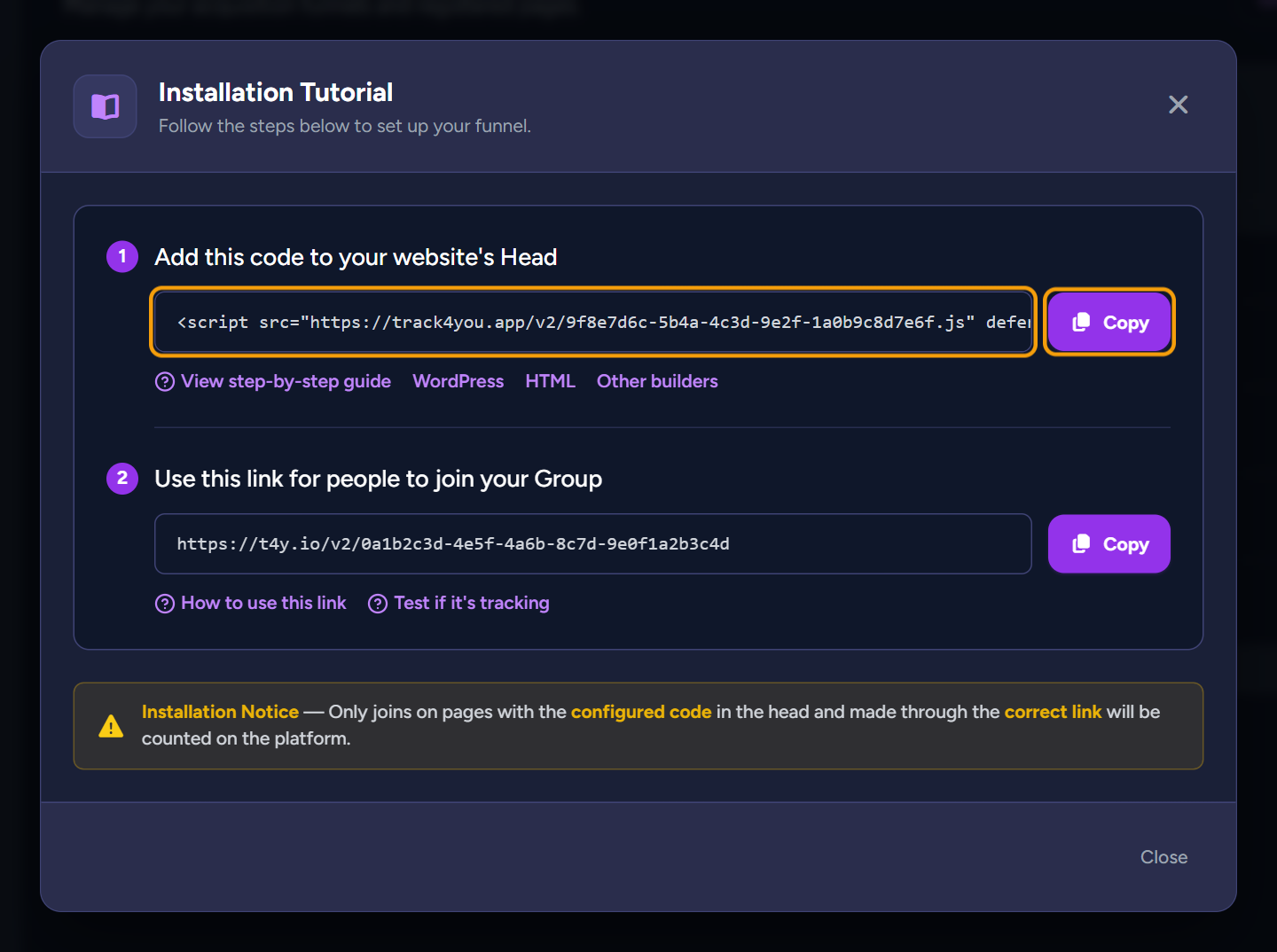
Open your page in the editor and paste the script into the header (the
<head>part of the page), without changing anything. The copied code looks like this:html<script src="https://track4you.app/v2/9f8e7d6c-5b4a-4c3d-9e2f-1a0b9c8d7e6f.js" defer></script>Repeat on every page added to the funnel and publish the changes.
Each builder has a different place for the header. See the guide for yours:
One script for the whole account
The script is the same for all your funnels and all your pages. If you've already installed it on one page, you can use exactly the same code on the next ones, even from other funnels.
Paste it without changes
Always copy with the "Copy" button and paste the whole code, from <script to </script>. Don't change any character or remove the defer.
After the script, set up the page button with the funnel's join link: see Set up the page button.
How to check it worked
- Open the published page and do the funnel test: the visit shows up in the Dashboard, on the "Pageviews" card.
Common problems
- The visit doesn't show up in the app: check that the page address matches the one added to the funnel (same domain and same page), that the script is in the header and that the page was published. See Pageviews don't show up in the app.
- The builder doesn't let you paste code into the header: look for a "custom code" or "scripts" option in the site or page settings. See Install on other page builders.