
Message editor: blocks, formatting, buttons and media
Every Track4you message (welcome, leave, recurring and one-time broadcasts) is built in the same editor, in blocks. Each block reaches Telegram as a separate message, in the order it appears on the screen.
The blocks
| Block | What it is | Limits |
|---|---|---|
| Text ("Text Message") | Text with bold, italic, underline, strikethrough, the lead's name, emoji and up to 3 buttons with links | Up to 1000 characters · button with up to 20 characters |
| Image | A photo or artwork | JPEG, PNG, GIF, WEBP · up to 5MB |
| Video | A regular video | MP4, MOV, WEBM · up to 20MB |
| Audio | Reaches the lead as a voice message | MP3, OGG, WAV, M4A · up to 10MB |
| Round Video | Telegram's round video | MP4, MOV · up to 20MB · the video must already be square (1:1) |
| Delay ("Wait (Delay)") | A pause before the next block, so the sequence arrives at a conversational pace | From 1 to 60 seconds |
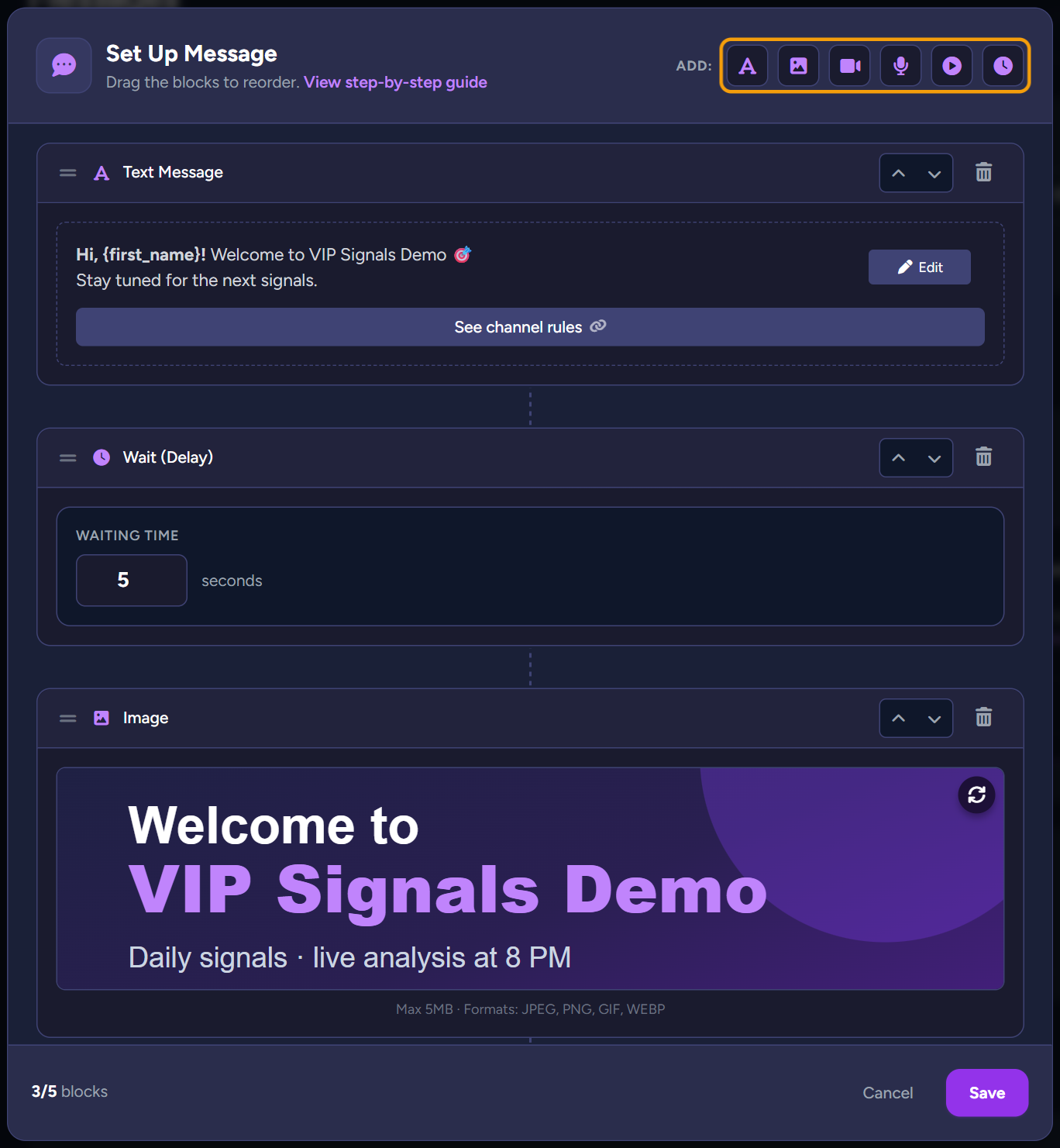
Each message has up to 5 blocks. The counter at the bottom shows how many you've used (e.g. "3/5 blocks").
Delay only in private messages
The Delay block is available in Join and Leave messages. It doesn't show up in channel broadcasts (recurring and one-time).
Step by step
Open the editor with "Set Up" on the "Join" or "Leave" card (or from a broadcast's modal).
Add blocks with the "Add:" buttons at the top of the modal. With the editor empty, use "Add block". To insert a block in the middle, click the + between two blocks.
Text block: a new block opens ready for you to write (for text that's already there, click "Edit"). On the block's toolbar:
- B, I, U and S apply bold, italic, underline and strikethrough to the selected text.
{}inserts the lead's name: "First Name" becomes{first_name}and "Last Name" becomes{last_name}.- The smiley icon opens the emojis.
- The counter shows how many characters you've used (e.g. "86 / 1000").
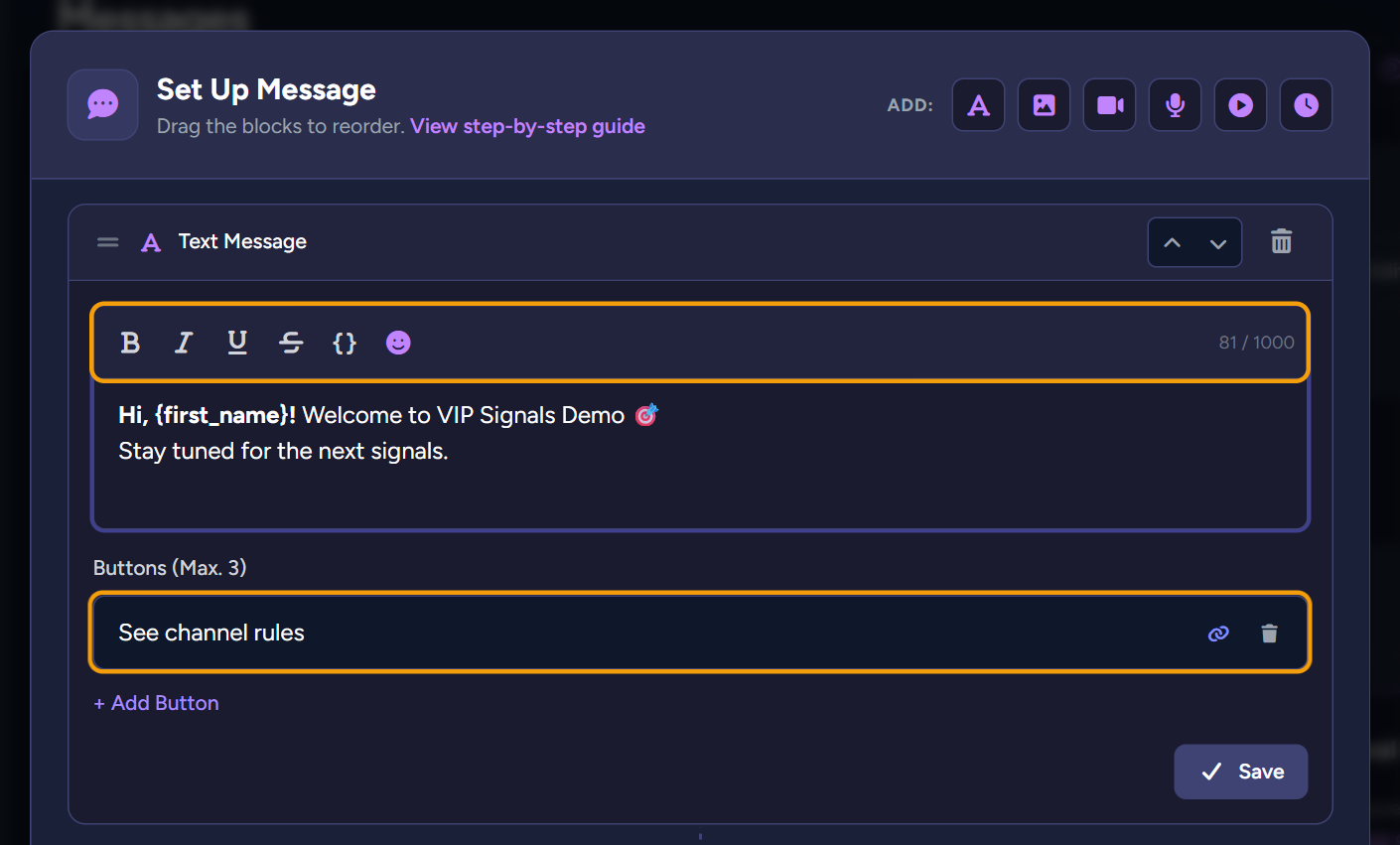
Buttons: under "Buttons (Max. 3)", click "+ Add Button", type the button text and click the link icon to paste the address (e.g.
https://blacklaunch.com/vip). Click "Save" in the link field. Then click "Save" on the block to finish editing the text.Image, video, audio or round video: click the "Upload ..." area or drag the file onto it. The upload starts right away; wait for "File uploaded successfully!" to show up. To replace the file, use the swap icon in the corner of the media.
Delay: under "Waiting time", type 1 to 60 "seconds".
Order: drag the block by its handle (the two lines to the left of the name) or use the up and down arrows. The trash can deletes the block.
Click "Save" at the bottom of the modal.
Lead's name only in private messages
Use {first_name} and {last_name} in Join and Leave messages, which go to a single person. Channel broadcasts are for everyone, so write them without the name.
Every button needs a link
The button takes the lead to the address you entered. Paste the full link, starting with https://.
Common problems
- The "Save" at the bottom is grayed out: there's an empty text block, a media block with no file or text still being edited. Fill in or delete the block and click "Save" inside the text block. If "Fill in all required fields before saving." shows up, it's the same case.
- The button shows "Loading...": a file is still uploading, and the bottom of the modal shows how many uploads are in progress. Wait for them to finish and save.
- "File too large. Maximum size: ...": shrink the file to the block's limit (table above).
- "Invalid file format. Accepted formats: ...": convert the file to one of the formats in the list.
- "This doesn't look like a valid domain." or "Invalid URL.": the button's link is incomplete. Paste the whole address, with
https://. - "You have reached the upload limit. Try again in ...": you uploaded too many files in a short time. Wait for the time shown.
- The "Add:" buttons are grayed out: the message already has 5 blocks ("Limit of 5 blocks reached"). Delete a block to add another one.
- "Couldn't save the message.": try again. If it keeps happening, contact support.