
Account settings
On the Settings screen you keep your details up to date: profile photo, name, login email, language, time zone and, for accounts billed in reais (BRL), the CPF or CNPJ. It's also where you change your password.
Step by step
At the bottom of the sidebar menu, click the channel card and then "Settings". The "Account Settings" screen opens.
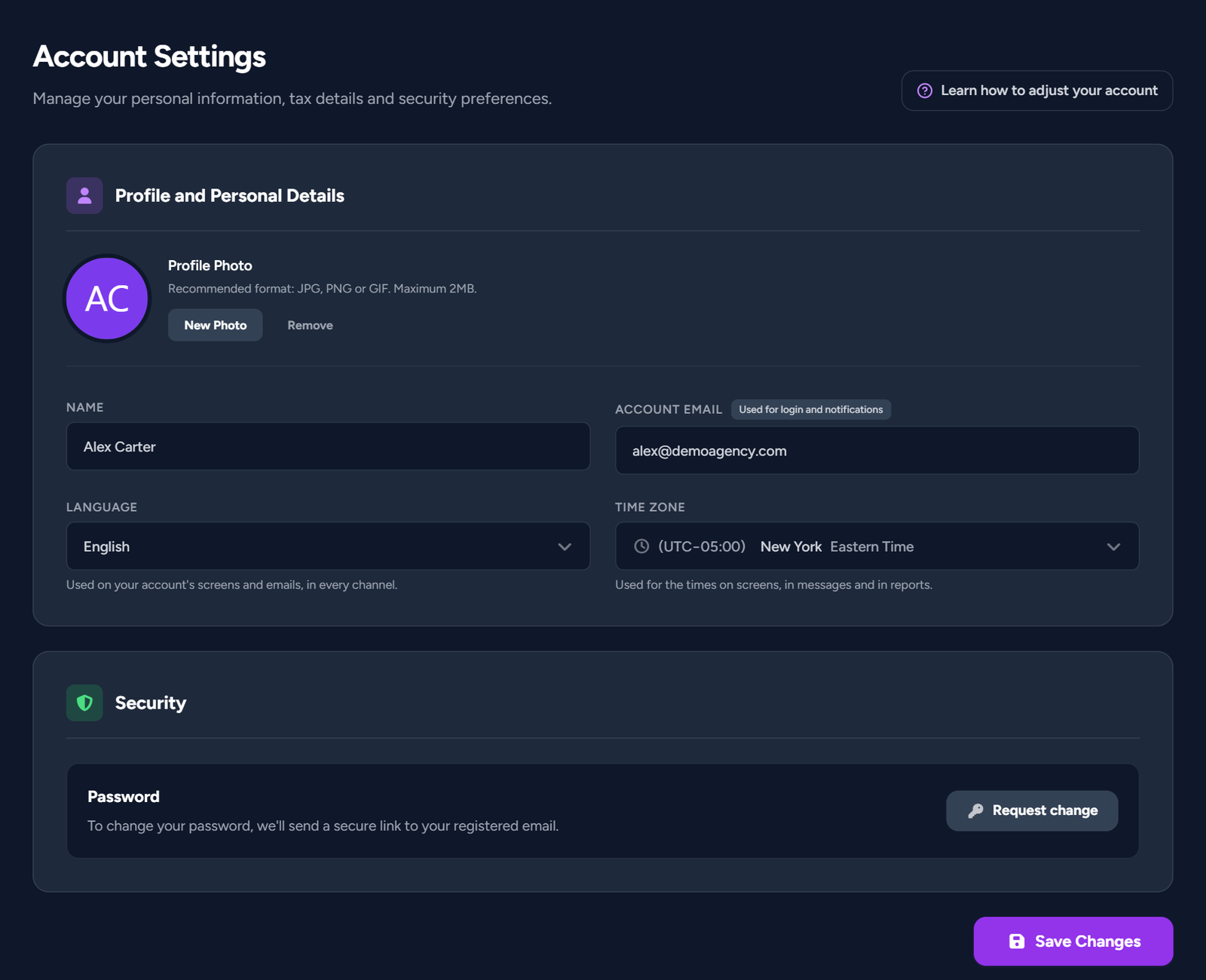
In the "Profile and Personal Details" card, change what you need:
- "Profile Photo": click "New Photo" to upload a JPG, PNG, GIF or WebP image of up to 2MB, or "Remove" to go back to your initials.
- "Name": the name that shows up in the app.
- "Account Email": the email you use to log in and to get notices. Type it in lowercase.
- "Language": the language of your account's screens and emails, in every channel (Portuguese or English).
- "Time zone": the time zone of the times on screens, in scheduled messages and in reports. Type a city in "Search city or time zone" to find yours.
If your account is billed in reais (BRL), fill in "CPF or CNPJ" (Brazilian tax ID) in the "Tax Information" card. The field only takes numbers and adds the punctuation by itself. Accounts billed in US dollars don't see this card.
Click "Save Changes".
How to check it worked
- You'll see the message "Settings updated successfully."
- If you changed your email, use the new email the next time you log in.
Common problems
- "Couldn't save your changes. Check the fields and try again.": one of the fields has a problem. Check the red text below it.
- "CPF must have 11 digits or CNPJ 14 digits.": the number is incomplete. The field is optional, but if you fill it in, it has to be complete.
- "The image must be at most 2MB." or "Accepted formats: JPG, PNG, GIF or WebP.": replace the image with a smaller one or one in another format.
- The email won't save: check that it's all lowercase and that it isn't already used by another Track4you account.