
Edit or delete a domain
Moved your pages to a new address or want to free up room in your plan? On the Domains screen, you edit or delete each domain with the icons in the "Actions" column.

Edit a domain
Editing changes the address in every funnel linked to that domain at once. It's the right path when your pages moved to another domain and the funnels stay the same.
In the menu, open Domains and click the pencil on the domain row.
In the "Edit Domain" modal, change the address in "Domain Address". The same rule as when adding applies: only the domain, no
https://and no page name.Click "Save". The screen confirms with "Domain updated".
Install the script on the pages of the new domain
If your pages moved to a new address, make sure the tracking script is in the <head> of the new pages. See Install the script on your page.
Delete a domain
You can only delete a domain that isn't linked to any funnel.
In the menu, open Domains and click the trash can on the domain row.
Check the domain in the "Delete the domain?" message and click "Delete".
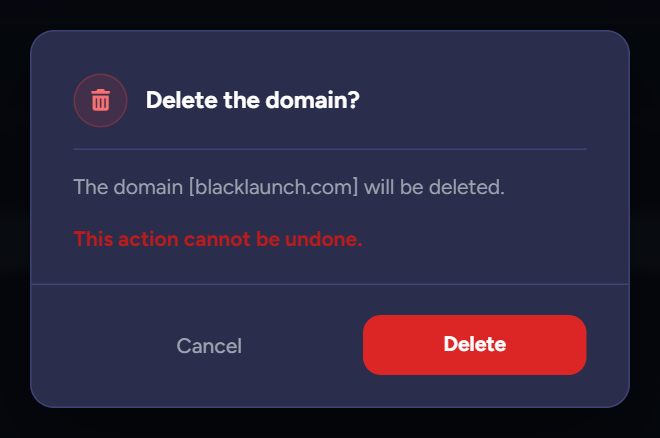
Deleting can't be undone
"This action cannot be undone." If you need the domain again, add it once more in Add your domain.
How to check it worked
- Edited: the "My Domains" list shows the new address.
- Deleted: the screen shows "Domain removed", the domain leaves the list and the counter next to the "New" button goes down.
Common problems
- "This domain cannot be deleted because it is linked to a funnel.": a funnel uses this domain. Open Funnels, delete the funnels that use this domain (if you still need them, create them again with another domain), then come back and delete the domain. See Edit, view the tutorial or delete a funnel.
- "The domain "..." has already been added" when editing: the new address is already on another row. If that other row has no funnel, delete it and edit again: that way the old domain's funnels move to the new address.
- "Invalid domain": the address needs a dot, like
yoursite.com.
Still have questions? Talk to support on WhatsApp.