
Track more than one channel
You don't need another account to track another Telegram channel: just click "New channel" and keep going in the same login, switching channels from the menu.
- Separate data: each channel has its own funnels, pixels, domains and postbacks.
- One plan per channel: each channel has its own subscription and invoice, sized to what it needs. See Plans and limits.
Add a channel
At the bottom of the sidebar menu, click the channel card to open the profile menu and click "New channel".
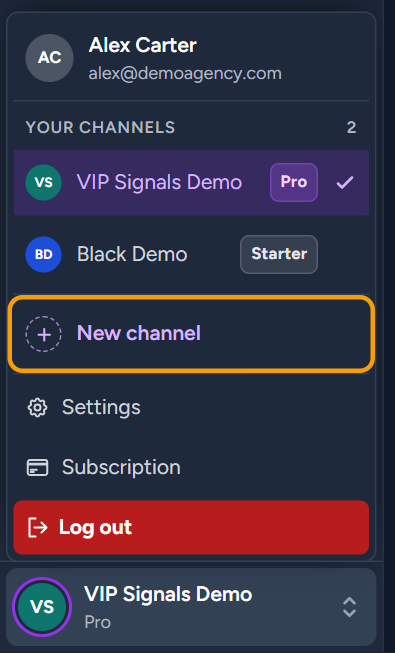
The same button shows up on the Plans page, in the "Want to track another channel?" box.
Read the "One more channel, same login" notice and click "Set up Channel 2" (the number follows how many channels you already have).
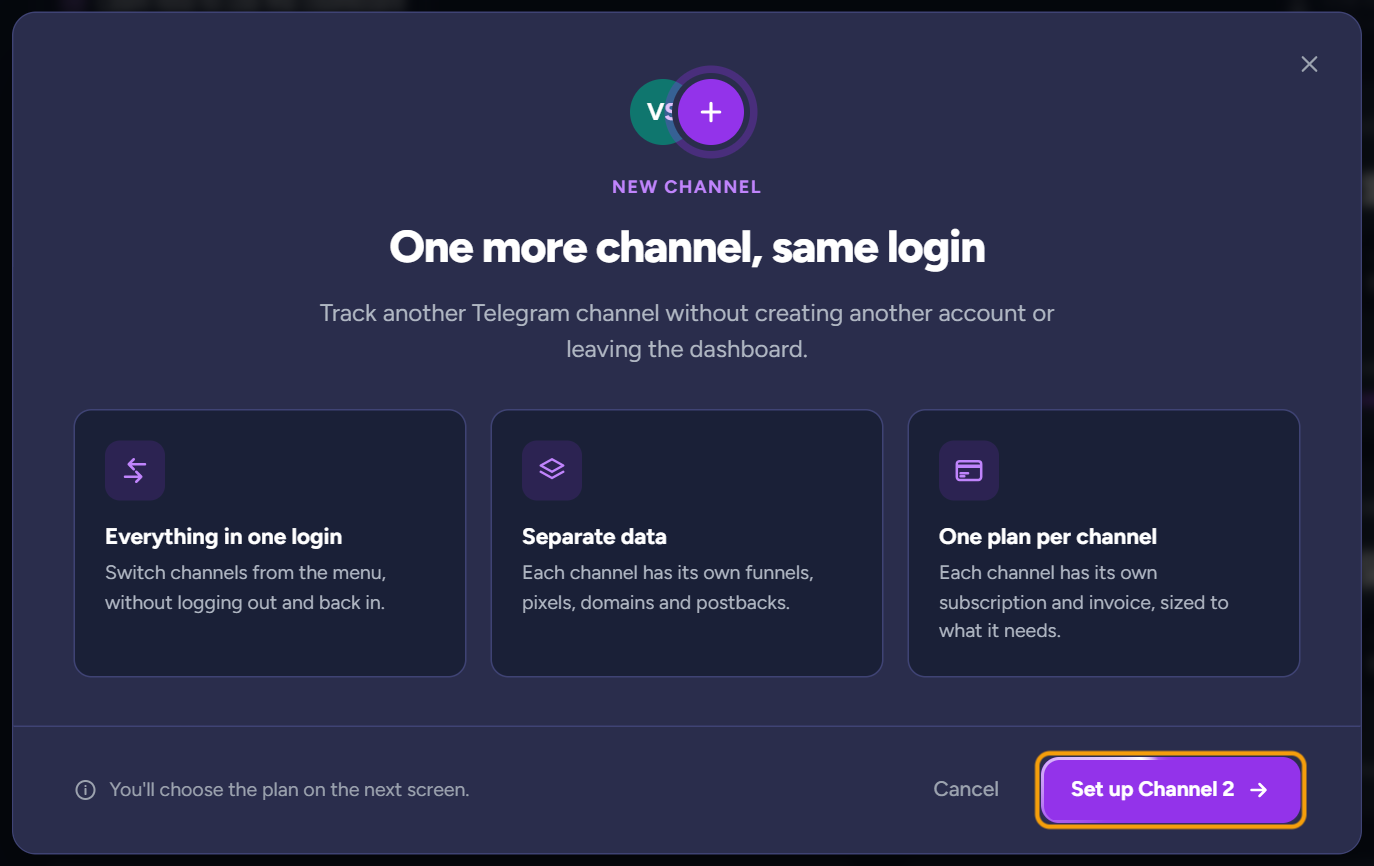
The Plans page opens on the new channel. Choose its plan and complete the payment.
With the plan active, open Channel in the menu, click "New Channel" and follow Connect your channel to Track4you.
"New channel" or "New Channel"?
"New channel" in the profile menu adds a channel to your login, with its own plan. "New Channel" on the Channel screen connects the Telegram channel to the channel that's open, just like the first time.
Switch channels
- At the bottom of the sidebar menu, click the channel card.
- In the "Your channels" list, click the channel you want to open. Each one shows its plan next to its name.
The whole app switches to the chosen channel. A message with its name shows up, like "You are now on Channel 2", and the card at the bottom of the menu changes too.
Delete a channel
- Open the channel that's leaving.
- In the profile menu, click "Settings" and go to the "Channel" card.
- Click "Delete channel", type the channel name to confirm and click "Delete channel" again.
Deleting can't be undone
That channel's funnels, pixels, domains, postbacks and all its history are deleted from Track4you. The channel on Telegram stays as it is.
How to check it worked
- The new channel shows up in the "Your channels" list. Until it has a bot connected, it's called "Channel 2"; after you connect it, it shows the Telegram channel's name.
- The badge next to the name shows the channel's plan, or "No plan" if you haven't chosen one yet.
Common problems
- The sidebar menu items have a padlock: the open channel has no plan. Choose a plan on the Plans page.
- "You just created a channel. Wait a minute to create another one.": wait a minute and click "New channel" again.
- "This channel has an active subscription. Cancel the subscription before deleting it.": cancel that channel's subscription and try again later. See Subscription, invoices and cancellation.
- "This is your only channel, so it can't be deleted.": the login needs at least one channel. To put another Telegram channel in its place, see Change channels or disconnect.