
A tour of the app
Everything in Track4you is in the sidebar menu on the left. The items follow the setup path: you work your way down the menu as you build your tracking.
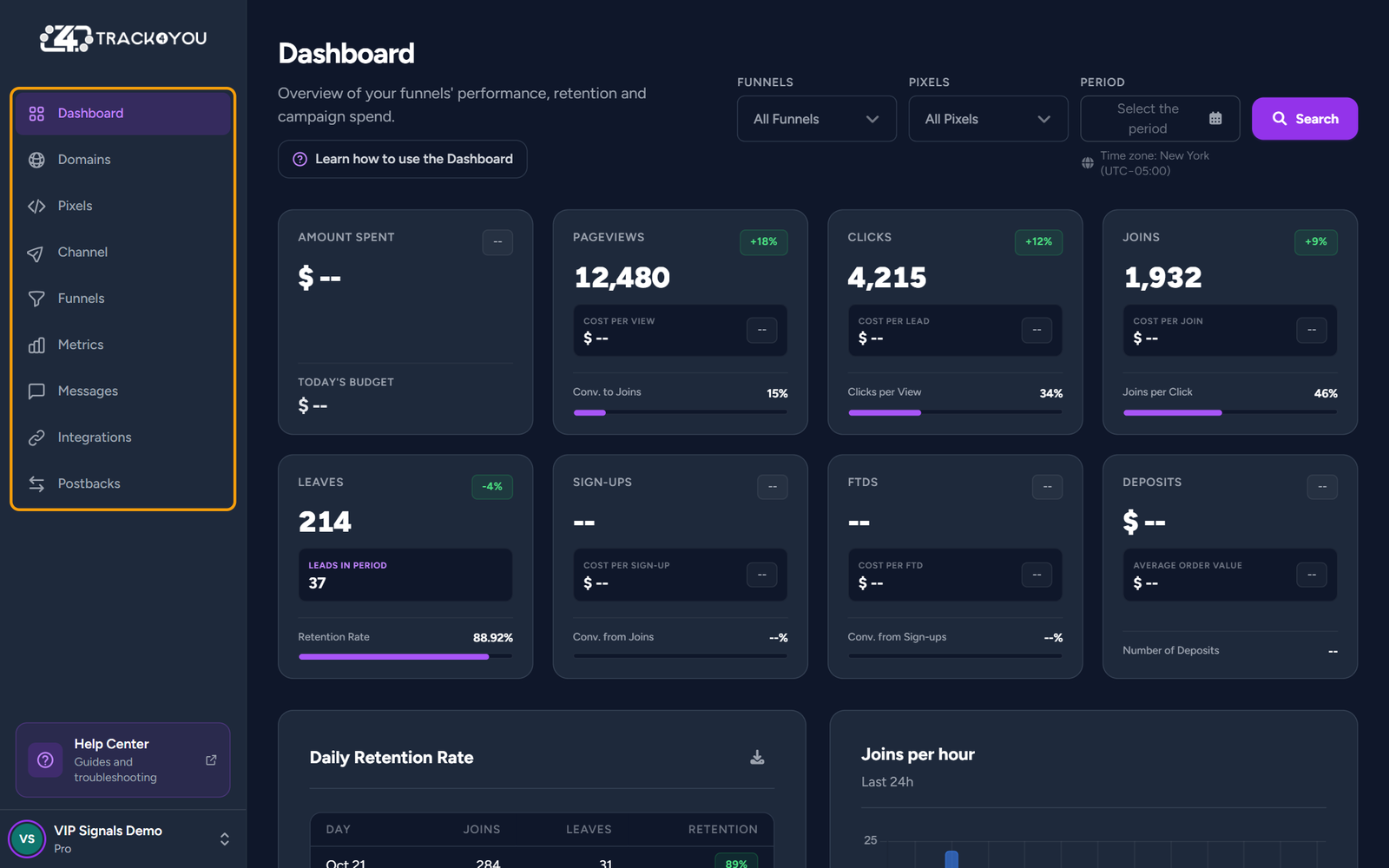
The sidebar menu
| Item | What it's for |
|---|---|
| Dashboard | The home screen: an overview of how your funnels are doing (pageviews, clicks, joins, leaves and retention). See Dashboard: understanding the numbers |
| Domains | The addresses of the websites where your landing pages live. See Add your domain |
| Pixels | Your Meta and TikTok pixels, the Test Event and the Error History. See how to add one on Meta and on TikTok |
| Channel | Your Telegram channel connection and its real-time check. See Connect your channel to Track4you |
| Funnels | Where you bring channel, domain, pixel and pages together, and get the script and the join link. See Create a funnel |
| Metrics | Analysis of your leads: who joined, where they came from and how long they stayed. See Metrics: lead analysis |
| Messages | Welcome message, leave message, automatic approval and channel broadcasts. See Automated messages: what you can do |
| Integrations | Sends sign-ups, FTDs and deposits from your platform to the pixel. See What Integrations are |
| Postbacks | Sends your funnel events to your CRM, spreadsheet or automation. See What postbacks are |
Locked items
Two items may show up in gray, with a padlock. When you click one, a notice explains what's missing:
- Messages unlocks when you have a connected channel and at least one funnel with "Join Request" turned on. Without a channel, the notice is "Set up a Channel to unlock the Messages tab". Without that funnel, the notice is "Messages can't be set up without a funnel with "Join request" enabled". See Join Request in the funnel.
- Integrations is part of the Pro and Enterprise plans. On the Starter plan, the notice is "Upgrade your plan to access Integrations". See Plans and limits.
The "Plans" item
The Plans item only shows up when your account doesn't have an active subscription. That's where you choose and subscribe to a plan.
Profile menu
At the bottom of the menu is the card of the channel that's open, with its name and plan. Click it to open the profile menu:
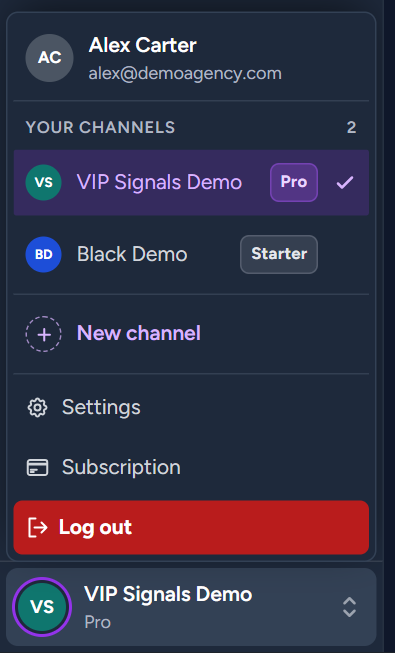
- Your channels: the list of channels in your login, with each one's plan. Click one to switch channels.
- New channel: adds another channel to the same login. See Track more than one channel.
- Settings: photo, name, email, language, time zone and password change. Accounts billed in Brazilian reais also have the CPF or CNPJ field. See Account settings.
- Subscription: opens the Plans page, where you change plans and, under "Manage subscription", update your payment method and download your invoices. See Subscription, invoices and cancellation.
- Log out: ends your session and takes you back to the login screen.
On your phone
On your phone, the menu is hidden. Tap the menu button in the top left corner to open it. When you pick an item, the menu closes by itself.