
TikTok pixel status and errors
On the Pixels screen you follow the health of each pixel: the status in the "My Pixels" list and, right below it, the "Error History", which shows when TikTok rejected a send and what to do to fix it.
What each status means
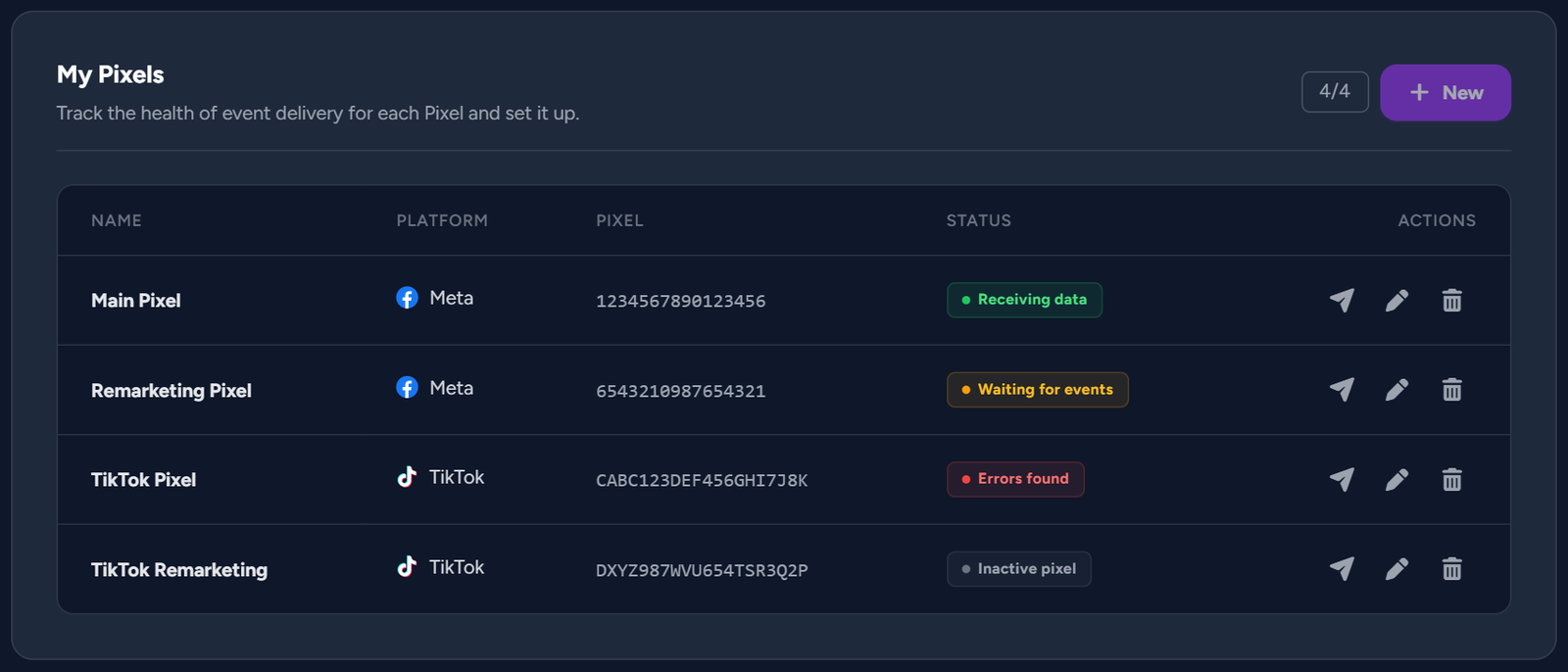
| Status | What it means | What to do |
|---|---|---|
| "Receiving data" (green) | TikTok accepted real events from your funnels in the last 24 hours. | Nothing. Everything's fine. |
| "Waiting for events" (amber) | The Test Event was done and no real funnel event has arrived yet. | Check that the pixel is in a funnel and that the page is getting visits. |
| "Inactive pixel" (gray) | The pixel hasn't done the Test Event yet, or hasn't sent events for more than 24 hours. | Send the Test Event. If the funnel is idle, just wait for new visits. |
| "Errors found" (red) | TikTok rejected 3 or more sends from this pixel in the last 24 hours. | Open the "Error History" and follow the fix it shows. |
| "Paused" (gray) | Your plan doesn't include TikTok. | Go back to Pro or Enterprise. See below. |
Paused pixel
When you move to Starter, sending to TikTok is paused. The pixel and the funnels stay there, and the funnels keep counting pageviews, clicks and joins in the app. Nothing goes to TikTok while your plan doesn't include it.
When you go back to Pro or Enterprise, sending resumes by itself. See Change your plan.
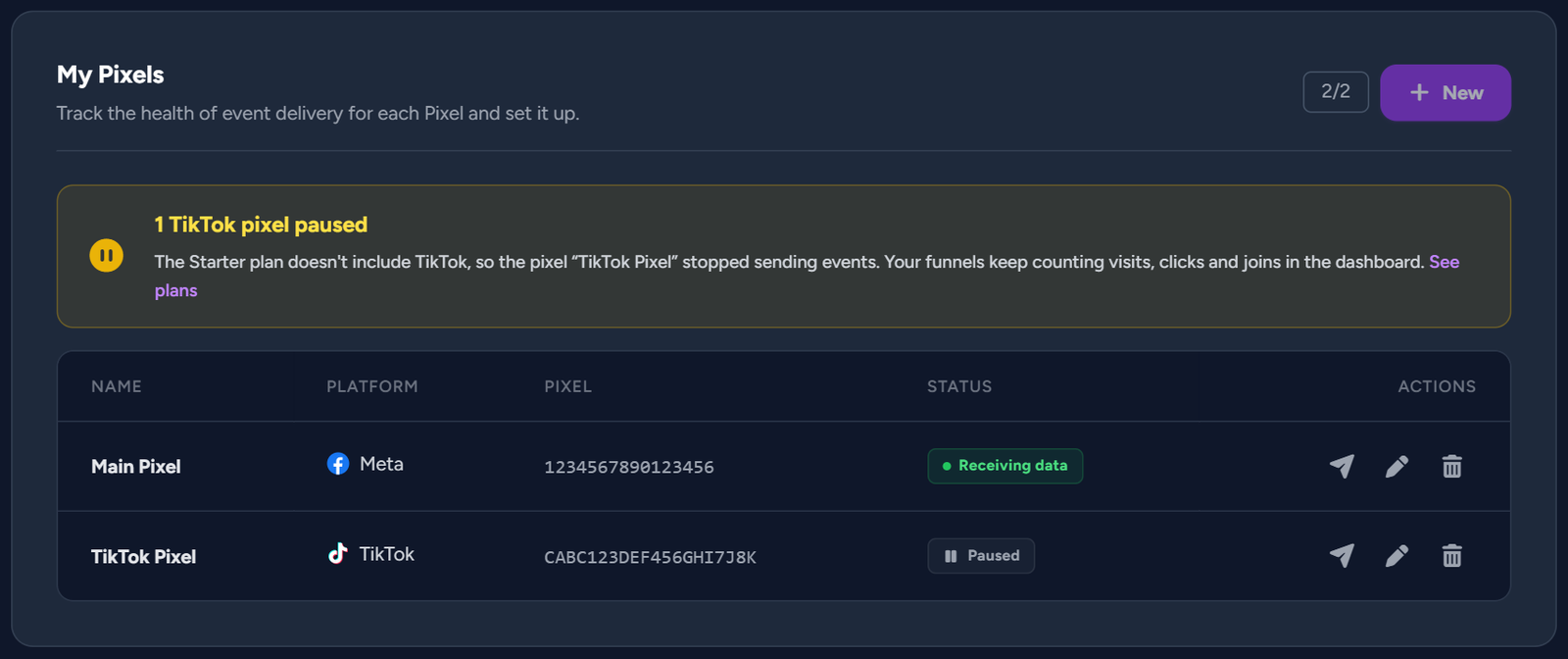
While it's paused:
- the Test Event is rejected with "The TikTok pixel is available on the Pro and Enterprise plans.";
- in the funnel's pixel selector, the pixel shows up disabled, with the "Paused" badge.
Error History
The "Error History" is below the pixel list. Each row shows the date, the time, the pixel, the error code, the description and how to fix it.
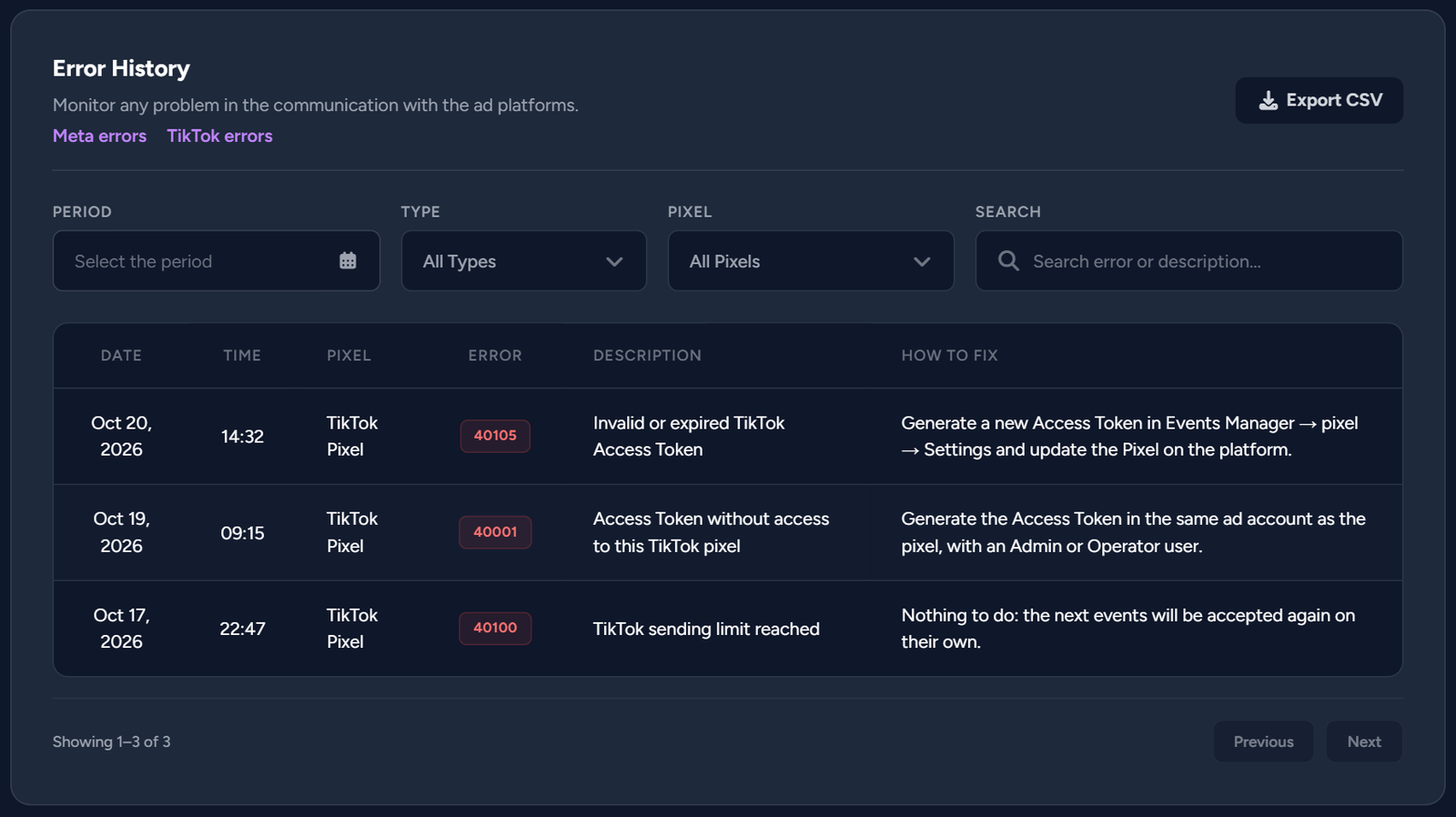
Use the filters to find an error quickly:
- "Period": choose the dates. Without a date, it shows everything.
- "Type": filters by error code. The TikTok list has "40105 — Invalid token", "40102 — Expired token", "40001 — No access to the pixel", "40002 — Event rejected" and "40100 — Sending limit".
- "Pixel": shows only one pixel's errors.
- Search ("Search error or description..."): looks for the error code or part of the error message. Use it for codes that aren't in the "Type" filter.
The "Export CSV" button downloads a spreadsheet with the whole error history, handy to send to support or to your team.
What to do for each error
| Error | Description | How to fix |
|---|---|---|
| 40105, 40102, 40104 | "Invalid or expired TikTok Access Token" | "Generate a new Access Token in Events Manager → pixel → Settings and update the Pixel on the platform." See Change the TikTok Access Token. |
| 40001 | "Access Token without access to this TikTok pixel" | "Generate the Access Token in the same ad account as the pixel, with an Admin or Operator user." |
| 40002 | "Event rejected by TikTok" | "Check the Pixel code; if the error persists, contact support." |
| 40100, 40132, 40133 | "TikTok sending limit reached" | "Nothing to do: the next events will be accepted again on their own." |
| Starts with 5 | "TikTok was down at the time of sending" | "Nothing to do: the next events will be accepted again on their own." |
| Other | TikTok's message | "Review the Pixel and Access Token settings; if the error persists, contact support." |
How to check it worked
- After fixing it, send the Test Event again with the paper plane on the pixel row.
- With no new errors in the next 24 hours and events arriving, the status goes back to "Receiving data".
- With the "Period" filter set to today, the history shows "No errors recorded in this period.".
Common problems
- I don't see the "Error History": it only shows up when you have at least one pixel added.
- The same error keeps happening after changing the token: check that you saved the new token on the right pixel and that you didn't generate another token on TikTok after that (only the latest one is valid).
- The pixel is "Paused" and no error shows up: that's expected. A paused pixel doesn't try to send, so it doesn't create errors.
Still have questions? Talk to support on WhatsApp.