
Add the TikTok pixel to Track4you
This is where you link your TikTok pixel to Track4you. With the pixel added and chosen in the funnel, every pageview, click and channel join reaches TikTok with advanced tracking, ready to optimize your campaigns.
Before you start
- Pro or Enterprise plan. Starter stays with Meta only. See Change your plan.
- Room in your pixel limit. The TikTok pixel counts together with Meta ones: Pro 4 pixels, Enterprise 8. See Plans and limits.
- Pixel code and Access Token in hand. See Where to find the TikTok pixel code and Access Token.
- TikTok Events Manager open in another tab: the Test Event comes right after you add the pixel.
Step by step
In the menu, open Pixels and click "New". If you don't have any pixels yet, click "New Pixel".
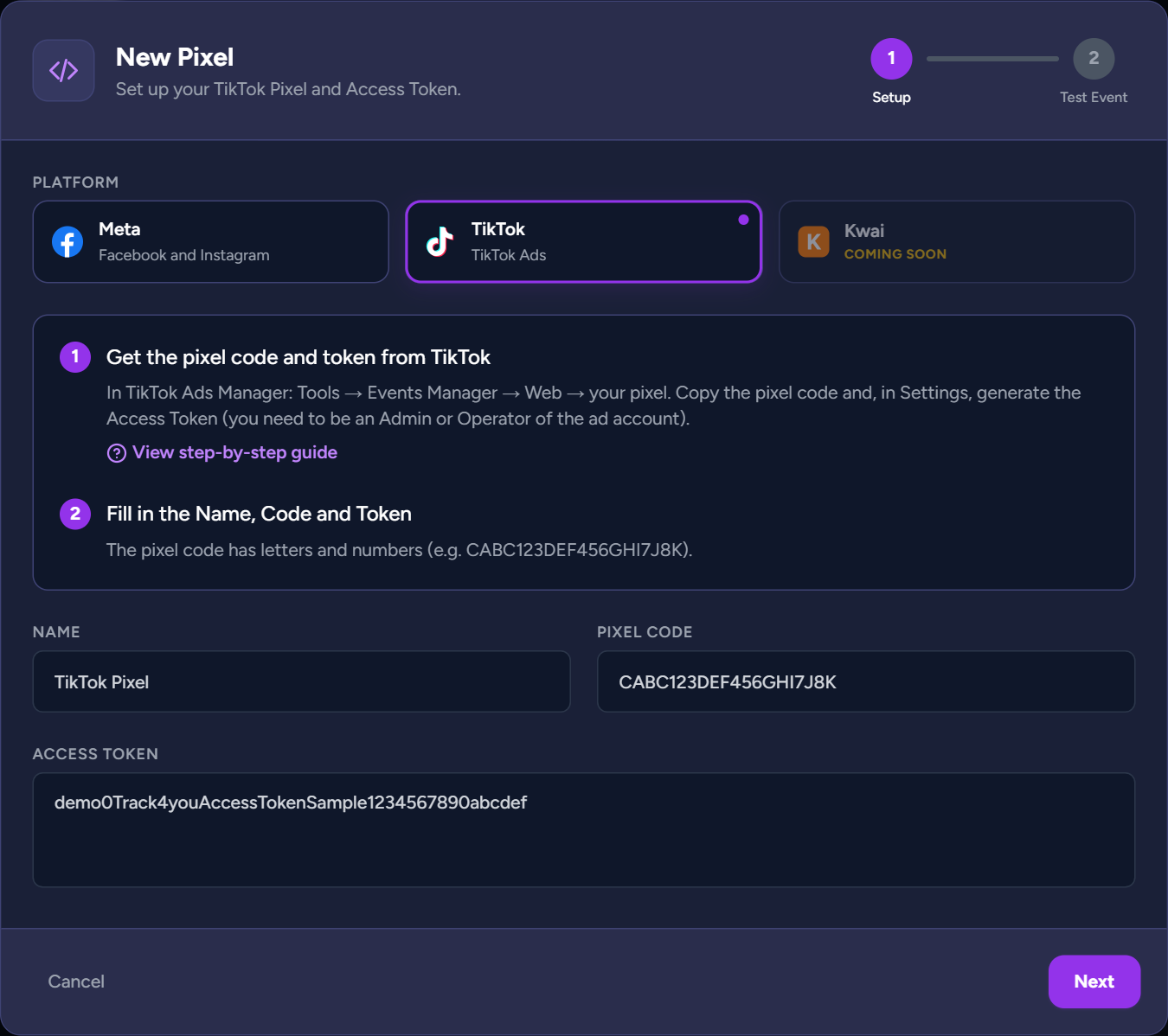
Under "Platform", choose the "TikTok" card.
On the "Setup" step, fill in:
- "Name": a name of your own to recognize the pixel (e.g. "TikTok Pixel").
- "Pixel Code": the code copied from Events Manager (e.g.
CABC123DEF456GHI7J8K). - "Access Token": the token you generated in the pixel settings.
Click "Next".
Track4you checks the code and the token with TikTok. If it works, you'll see "Pixel added successfully!" and the modal moves to the "Test Event" step. Continue in Send the Test Event in TikTok.
The platform can't change later
Once saved, the pixel always stays on the same platform. To use another one, add a new pixel.
How to check it worked
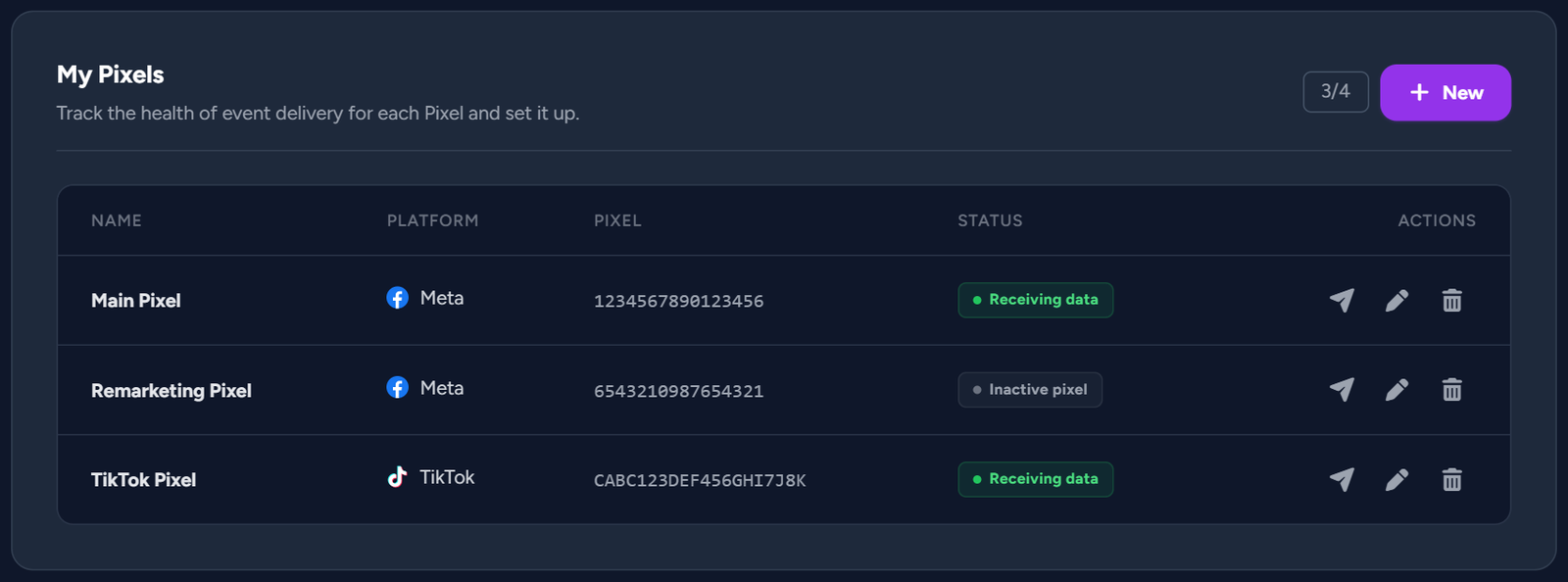
- The pixel shows up in "My Pixels" with the TikTok logo in the "Platform" column.
- The counter next to the "New" button adds up Meta and TikTok (e.g. "3/4").
Use the pixel in the funnel
Each funnel sends events to one pixel. To send to TikTok, choose the TikTok pixel in the funnel's "Pixel" field. See Create a funnel.
Want to run Meta and TikTok on the same channel? Create one funnel per platform. Each funnel needs its own pages, because the same page can't be in two funnels.
Does your page already have the TikTok pixel?
You don't need to install anything else: the Track4you script already loads the pixel. If the page already has the pixel code, the pageview isn't counted twice. If that code also fires its own events (like ViewContent, Contact or Lead), remove those, because Track4you already sends them.
Edit or delete a pixel
In the "My Pixels" list, each row has three icons: paper plane (Test Event), pencil (edit the name, code or token) and trash can (delete).
- To change the token, see Change the TikTok Access Token.
- To delete it, the pixel can't be in use in any funnel. Confirm in "Delete the Pixel?": deleting can't be undone.
Common problems
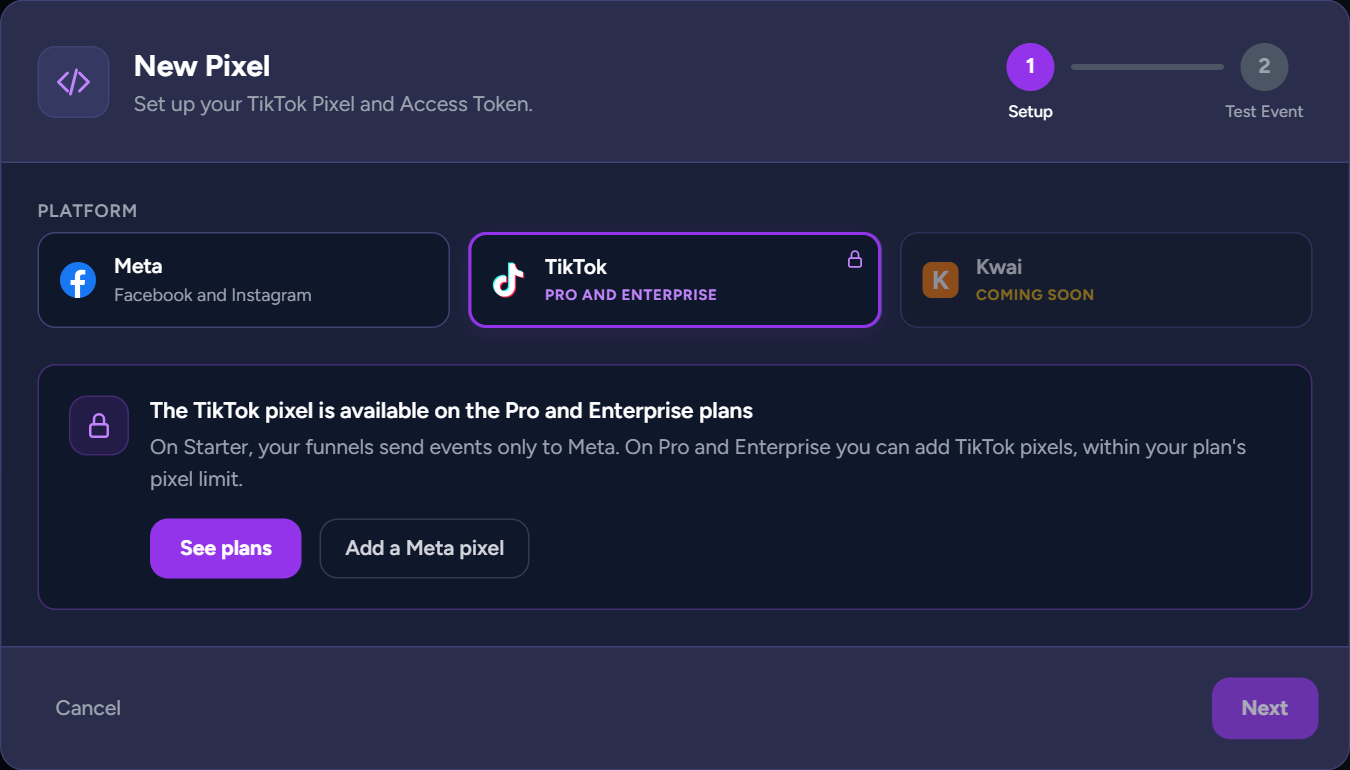
The TikTok card shows a padlock and "PRO AND ENTERPRISE": your plan doesn't include TikTok. Click "See plans" to change plans or "Add a Meta pixel" to go on with Meta. See Change your plan.
"Invalid or expired TikTok Access Token": the token is wrong or incomplete. Generate a new one in Events Manager → pixel → Settings and paste it again.
"Access Token without access to this TikTok pixel": generate the Access Token in the same ad account as the pixel, with an Admin or Operator user.
"The TikTok pixel code has uppercase letters and numbers (15 to 30).": check that you copied the whole code.
"Pixel ... has already been registered for this user.": this pixel is already on your list. Use the one that's there.
The "Next" button stays disabled: fill in all three fields (Name, Pixel Code and Access Token).
"This pixel cannot be deleted because it is linked to a funnel.": a funnel uses this pixel. Change the funnel's pixel or delete the funnel first. See Edit, view the tutorial or delete a funnel.
Still have questions? Talk to support on WhatsApp.